
What is the Intuit QuickBooks Direct Deposit Form?
The Intuit QuickBooks direct deposit form is an authorization document that employees use to set up direct deposit for their payroll through Intuit QuickBooks Payroll. By completing this form, the employee authorizes the employer to deposit their paycheck electronically into one or two designated bank accounts. The employer enters the banking information into QuickBooks Payroll, and after a 1–2 pay cycle activation period, the employee's wages are deposited directly — eliminating paper checks and reducing payroll processing delays.
What is the Intuit Direct Deposit Form used for?
The Intuit QuickBooks direct deposit authorization form is used to:
- Set up direct deposit for employees paid through QuickBooks Payroll
- Direct the full paycheck to a single checking or savings account
- Split the paycheck between two bank accounts (fixed amount + remainder)
- Update banking information when an employee changes banks or accounts
- Authorize the employer's payroll system to make ACH transfers
- Stop a prior direct deposit authorization and switch to a new account
How to Fill Out the Intuit Direct Deposit Form
- 1
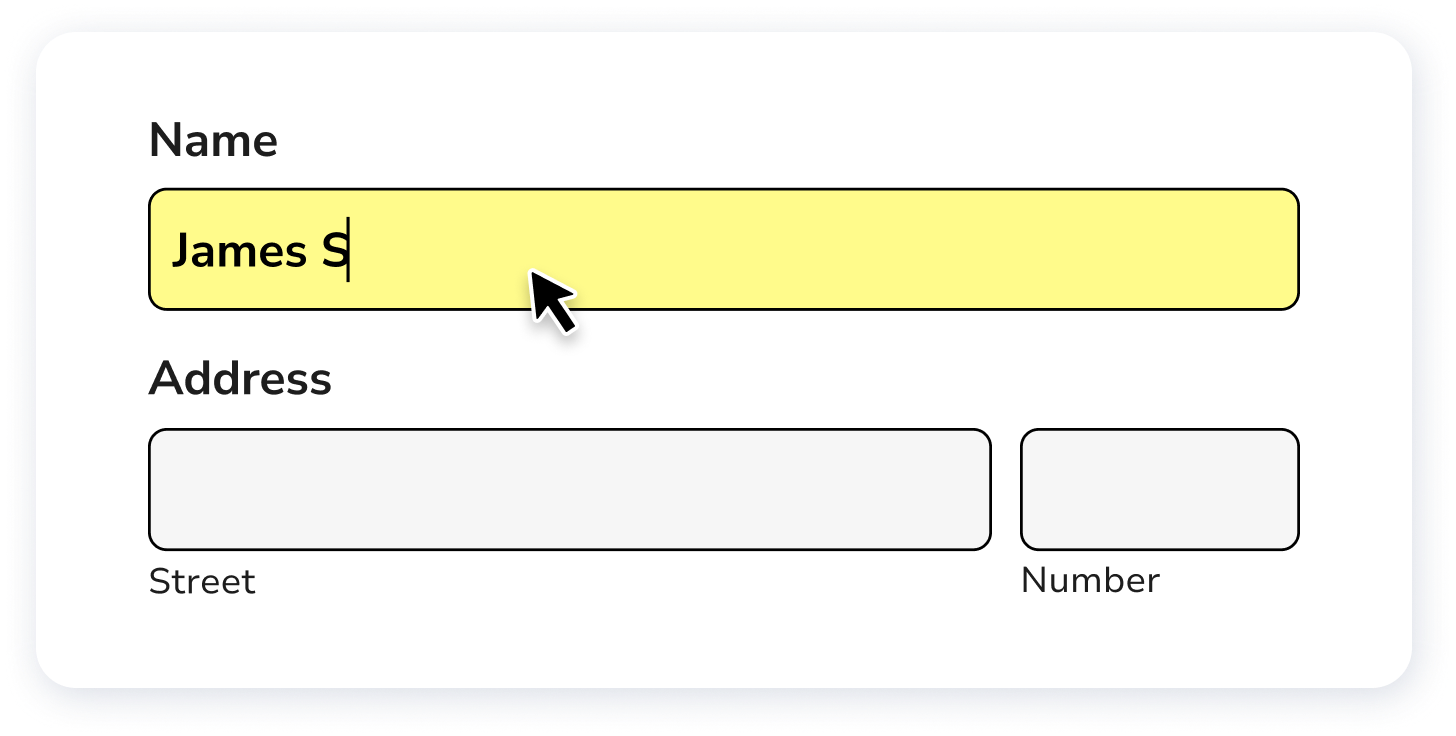
Enter your full legal name as it appears on your employment records.
- 2
Enter your employee ID or Social Security Number if required by your employer.
- 3
Enter your bank's full name.
- 4
Enter the bank's ABA routing number (9 digits, found at the bottom-left of a check).
- 5
Enter your full account number (found at the bottom of a check, after the routing number).
- 6
Select the account type: checking or savings.
- 7
If splitting between two accounts, enter the second account's routing number, account number, and account type. Specify the amount or percentage for each.
- 8
Sign and date the form.
- 9
Submit the completed form to your employer's HR or payroll department.
Who Needs to Complete the Intuit Direct Deposit Form?
Any employee who wants to receive their paycheck via direct deposit through QuickBooks Payroll must complete this form. Both new hires setting up direct deposit for the first time and existing employees updating their banking information should use this form. The employer's payroll administrator enters the information into QuickBooks and must void the first live paycheck if the setup is not complete before the payroll run.
Who Does Not Need This Form?
Employees who prefer to receive paper checks do not need to complete the direct deposit form. Contractors and vendors paid through QuickBooks Bill Pay use a different ACH authorization process and do not use this employee payroll form. Employees paid through a different payroll provider (not QuickBooks/Intuit) should use their employer's payroll system's specific authorization form.
When to Submit the Intuit Direct Deposit Form
Submit the completed form to your employer's payroll department at least 2 weeks before your desired direct deposit start date. Intuit QuickBooks Payroll typically requires 1–2 full pay cycles for a new direct deposit to activate. If the form is submitted after the payroll processing deadline for an upcoming pay period, that paycheck will be issued as a paper check. Your employer will notify you when direct deposit is confirmed and active.
Where Can I Get the Intuit Direct Deposit Form?
PDF Guru provides a fillable, editable Intuit QuickBooks direct deposit form preloaded in the online editor. Open the custom template, enter your bank account details, sign, and download a printable PDF to submit to your employer. Your employer's HR or payroll department may also provide you with the form directly, or it may be available in your QuickBooks Employee Self-Service portal.
How to Sign the Intuit Direct Deposit Form Online
Open the Intuit direct deposit form in PDF Guru's online editor. Enter your bank and account details, then use the Sign tool to add your electronic signature. Download the completed form as a printable PDF and submit it to your employer's HR or payroll department. Most employers accept a printed, signed copy. If your employer requires a wet (ink) signature, print the form and sign by hand before submitting.