
Converting PDFs into Google Docs is one of the easiest ways to transform static documents into editable, collaborative files. Whether you need to extract text from a PDF file, preserve complex formatting, or simply make content accessible to your team, understanding how to convert PDF to Google Docs gives you multiple options. This guide by PDF Guru walks you through the direct method, a two-step approach that preserves formatting, and alternative techniques for inserting or linking PDFs.
How to open PDF in Google Docs (via Google Drive)
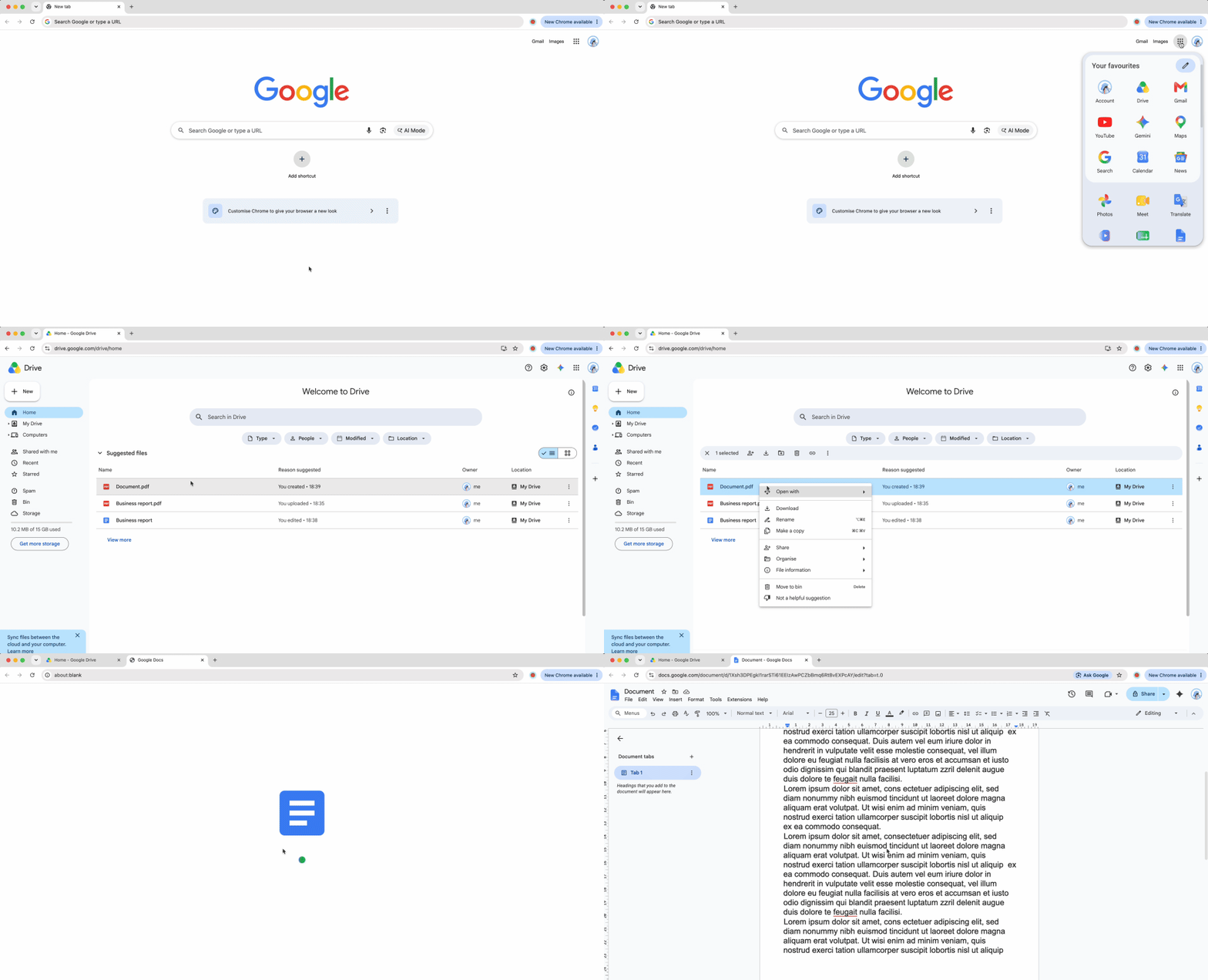
The most straightforward way to open PDF in Google Docs is through Google Drive's built-in conversion feature. This method works well for simple text-based documents, though you should be aware that complex layouts may not survive the conversion intact.
Here's the direct process for turning your PDF to Google Docs:
- 1Open Google Drive in your browser and click "New" or drag-and-drop your PDF file.
- 2Locate the uploaded PDF in your Drive folder.
- 3Right-click the PDF file.
- 4Select "Open with" from the menu, then choose "Google Docs."
- 5Wait a few moments while Google Drive converts the document.
The file opens as a new Google Doc, with text extracted and ready to edit. Google Drive includes built-in OCR (Optical Character Recognition), so even scanned or image-based PDFs can be converted this way.
Keep in mind that formatting often shifts during this direct conversion. Tables may misalign, multi-column layouts typically flatten into single columns, specialty fonts can substitute, and embedded images sometimes move out of position. This method works best when you're wondering how to turn a PDF into a Google Doc quickly and the original has minimal formatting.
How to convert PDF to Google Docs without losing formatting
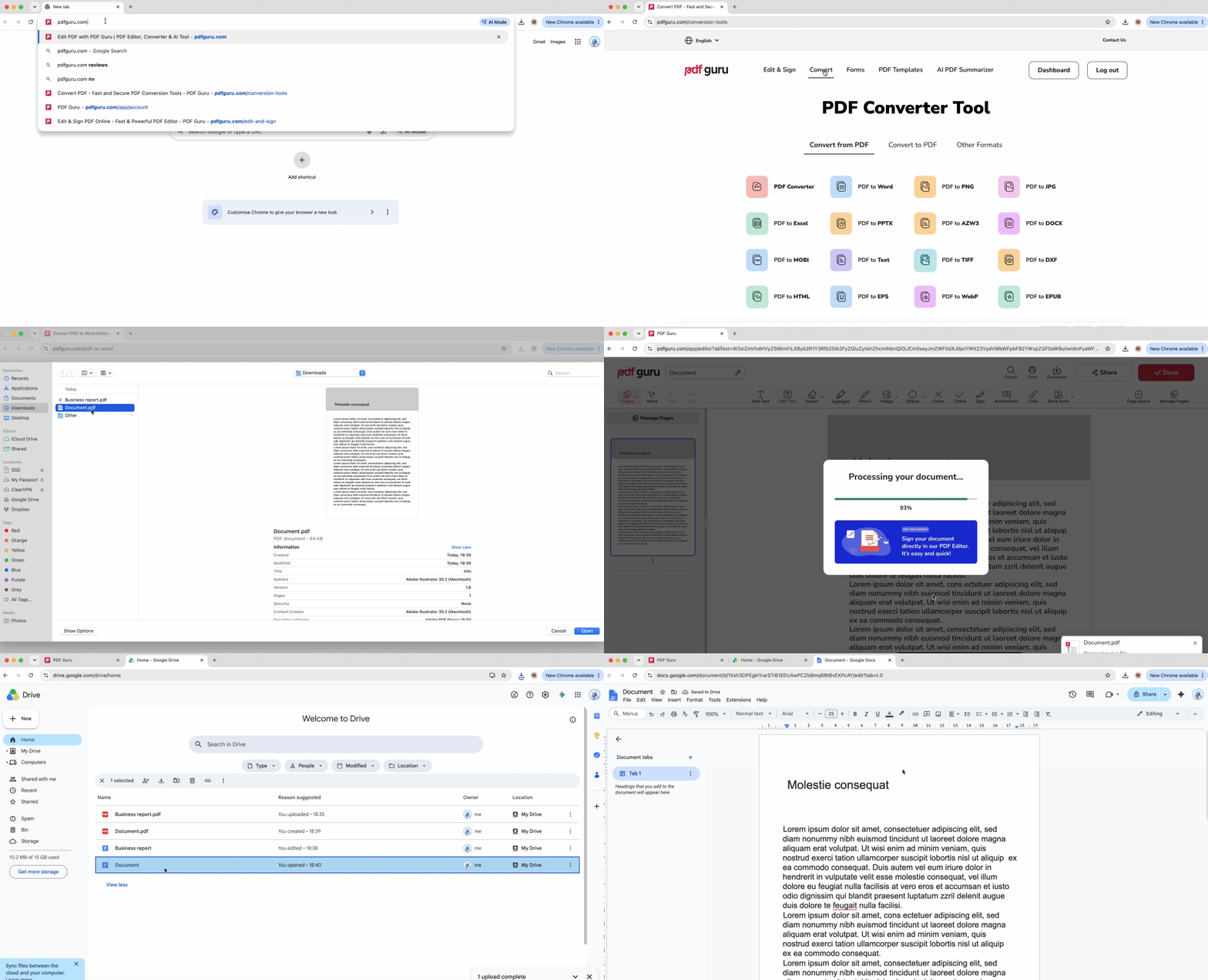
If you need to preserve tables, fonts, images, and layout structures, the recommended approach is a two-step process: first convert your PDF to Word format, then open that Word file in Google Docs. This method handles complex documents far more reliably because Google Docs is optimized for the .docx format.
Follow these steps to convert PDFs to Google Docs with better formatting results:
- 1
- 2Upload your PDF file to the tool.
- 3Download the converted Word (.docx) file once processing completes.
- 4Upload the Word file to Google Drive.
- 5Right-click the .docx file and select "Open with" → "Google Docs."
This workflow significantly improves how Google Docs interprets your content. Tables maintain their structure, font choices carry over more accurately, images stay positioned correctly, and multi-column layouts translate without collapsing. When you're figuring out how to convert a PDF to a Google Doc and quality matters, this intermediate step makes all the difference.
The reason this approach works better is simple: Google Docs natively supports Word format, so its conversion engine handles .docx files with greater precision than it does PDF files. If you're working with reports, formatted resumes, academic papers, or any document where layout integrity matters, the PDF → Word → Google Docs path is your most reliable option for learning how to make a PDF into a Google Doc that looks right.
How to insert a PDF into Google Docs as an image
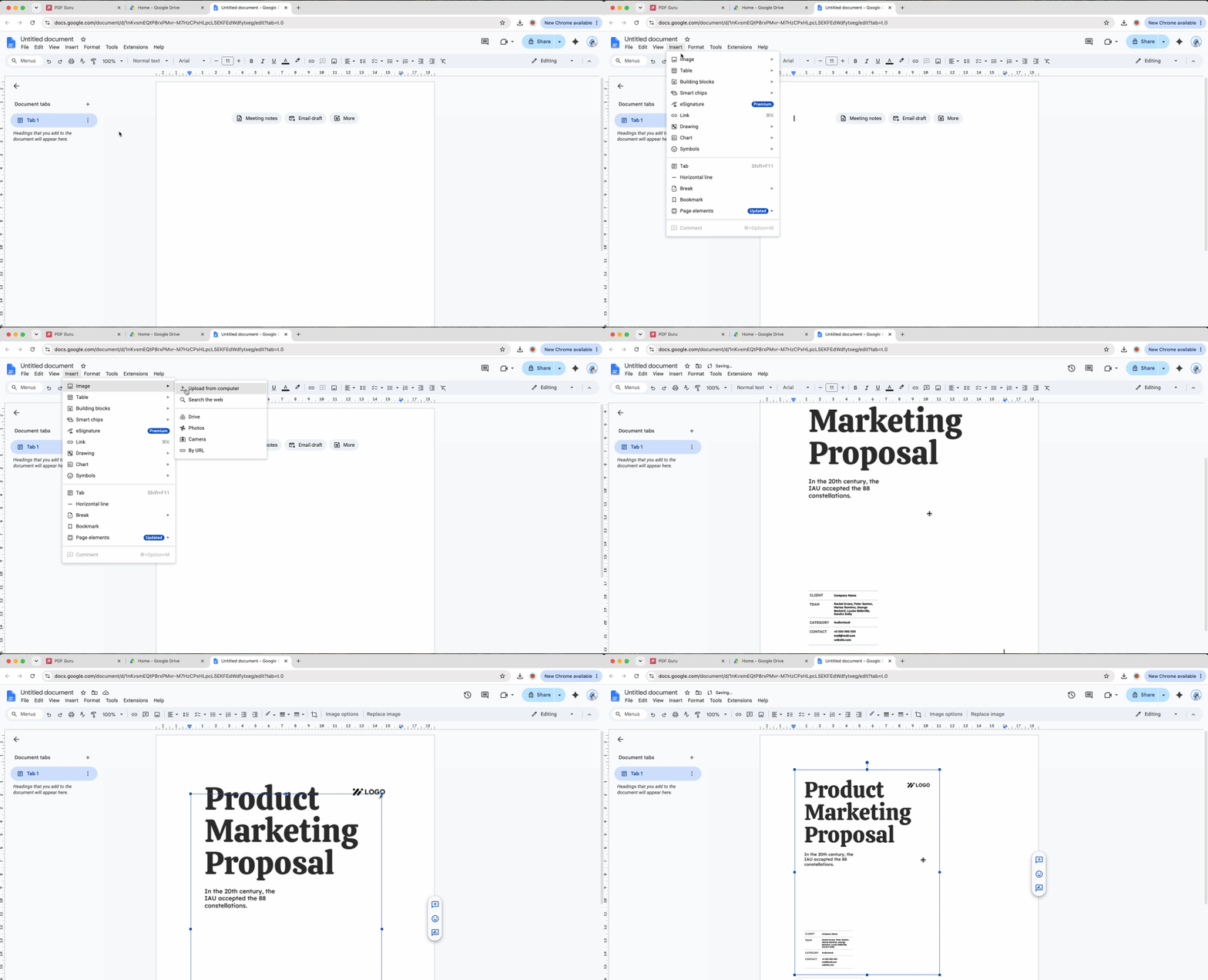
Sometimes you don't need editable text, you just want to display PDF content visually within a Google Doc. Converting your PDF to an image format and inserting it gives you a clean, non-editable representation that's ideal for charts, diagrams, forms, or visual references.
Here's how to turn PDFs into Google Docs as an embedded image:
- 1Convert your PDF to JPG or PNG format using any image conversion tool.
- 2Open the Google Doc where you want the content to appear.
- 3Click "Insert" in the top menu, then select "Image."
- 4Upload the converted image file from your computer or select it from Google Drive.
- 5Resize and position the image as needed within your document.
This method works well when you want to preserve the exact visual appearance of a page without allowing edits. Keep in mind that text becomes part of the image, so it's no longer searchable or selectable. Use this technique for single-page displays, visual appendices, or when you need to show exactly how a form or certificate looks without risking accidental changes.
How to add a PDF link in Google Docs
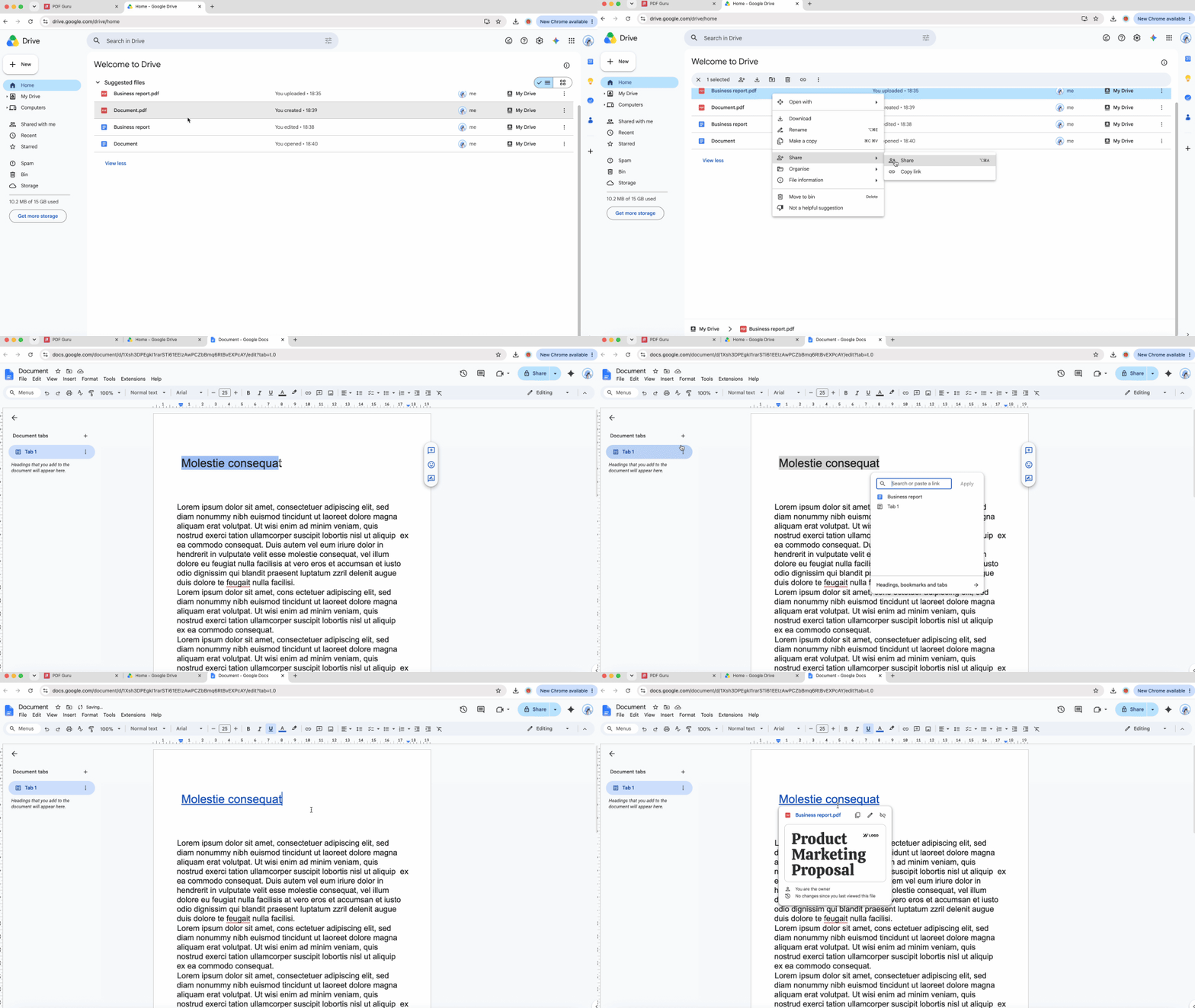
The simplest way to share PDF content through Google Docs is by embedding it as a clickable hyperlink. This approach maintains the original PDF file in its native format while giving readers easy access.
Follow these steps to link PDF to Google Docs:
- 1Upload your PDF to Google Drive if it's not already there.
- 2Right-click the PDF file, select "Get link," and copy the shareable link.
- 3Open your Google Doc and select the text or object you want to turn into a hyperlink.
- 4Click "Insert" in the menu and choose "Link" (or press Ctrl+K on Windows, Cmd+K on Mac).
- 5Paste the Google Drive link into the URL field and click "Apply."
- 6Adjust the file's sharing permissions in Google Drive if you need to control who can access it.
This method works beautifully for reference materials, source documents, appendices, or any situation where you want readers to view the original PDF without converting it. Before sharing your document, you can also add clickable links directly inside your PDF for an even more interactive experience.
Why convert PDF to Google Docs?
Converting documents from PDF to Google Docs format unlocks several practical advantages for modern workflows. Understanding these benefits helps you decide when conversion makes sense.
Real-time collaboration is the standout feature. Unlike static PDFs, Google Docs lets multiple users edit simultaneously, leave comments, suggest changes, and see updates instantly. Teams can work together from different locations without emailing file versions back and forth.
Full text editing capabilities transform how you work with content. You can modify paragraphs, reformat sections, restructure headings, and update data within tables — tasks that would require specialized software if you kept the file as a PDF. When you convert a PDF to Google Docs, the content becomes as flexible as any document you'd create from scratch.
Access from any device means your converted documents are available on desktop, laptop, tablet, or phone without installing special applications. The cloud-based nature of Google Docs eliminates compatibility concerns and ensures you can review or edit files wherever you are.
Integrated ecosystem brings everything together. Google Docs works seamlessly within Google Workspace, connecting to Drive for storage, Gmail for sharing, and other productivity tools. The platform handles common document tasks without requiring additional software purchases.
Whether you need to edit a document, collaborate with your team, or simply make content easier to update, this is one of the quickest ways to get there. Convert PDF to Word with PDF Guru and preserve the original formatting.
Formatting tips for PDF to Google Docs conversion
Getting the best results when converting PDF to Google Docs requires understanding a few practical strategies. These tips help you avoid common formatting issues and improve conversion quality.
Use simple PDF layouts whenever possible. Documents with straightforward single-column text, standard fonts, and basic formatting convert most reliably. Complex multi-column designs, unusual fonts, and heavily styled elements often introduce errors or unexpected changes during the conversion process.
Convert to Word first if your PDF contains tables, images, or careful formatting you need to preserve. As covered earlier, using the PDF to Word conversion feature before opening the file in Google Docs significantly improves how layouts transfer. This intermediate step is particularly valuable for business reports, academic papers, and any document where structure matters.
Restore any hyperlinks that didn't carry over. Links sometimes get lost during conversion, especially in PDFs that were originally exported from presentation tools or design software. If that happens, check out this guide on how to add hyperlinks in a PDF to add them back before sharing the final version.
Check fonts after conversion to catch substitution issues early. Some specialty or licensed fonts may not transfer correctly, causing Google Docs to replace them with default alternatives. Review your document after conversion and manually adjust any text that doesn't look right — this takes just a few minutes and ensures your final document meets your standards.
Use OCR for scanned PDFs to extract text from image-based files. Google Drive automatically applies Optical Character Recognition when you open a scanned PDF in Google Docs, but accuracy varies based on image quality and text clarity. For best results, ensure your scanned documents have high resolution and good contrast before you upload them.
Always review your converted documents carefully. Even when you're figuring out how to turn a PDF into a Google Doc using the most reliable methods, minor adjustments may be necessary. Check that tables align properly, images appear in the right locations, and text flows naturally across pages before you share the file with collaborators.