
Most people searching for how to convert MKV to MP4 hit the same frustration: their video file won't play on an iPhone, won't upload to YouTube, or gets rejected by QuickTime Player with a cryptic error. MKV is a powerful, open-source container format, but the trade-off for that flexibility is compatibility — it's refused by Apple devices, most Smart TVs, game consoles, web browsers, and nearly every social media platform. MP4 has become the universal standard, and converting your MKV files makes them work everywhere. The good news: if you're wondering how to convert MKV to MP4 without re-encoding the video and destroying quality, the answer is simpler than most tutorials suggest.
Why convert MKV to MP4?
MKV files face rejection across the device and platform ecosystem for a few concrete reasons:
- Device and app incompatibility: iPhones, iPads, Apple TV, QuickTime Player, Safari, and most Smart TVs (Samsung, LG, Sony) cannot play MKV files natively. Game consoles like PlayStation and Xbox also refuse MKV in their media player apps. If you're trying to watch a downloaded movie on your Apple TV or send a clip to someone with an iPhone, MKV simply won't work.
- Sharing failures: Email previews, messaging apps, and cloud storage video players expect MP4. When you share an MKV file, the recipient often sees a download icon instead of an embedded video player, or worse, an error message.
- Video editing software limitations: Consumer editors like iMovie and most timeline-based editors reject MKV imports outright. Even professional tools often require transcoding MKV to an editing-friendly format before you can start cutting footage.
- Streaming platform requirements: YouTube, Vimeo, Instagram, TikTok, and Facebook all list MP4 as their standard accepted format. Uploading an MKV usually triggers a rejection or requires the platform to transcode it server-side, delaying publication and sometimes degrading quality.
Here's the honest nuance most articles skip: MKV is technically a more capable container than MP4. It supports more audio codecs (including lossless FLAC and DTS-HD), unlimited subtitle and audio tracks with full styling, chapter markers, and embedded fonts. Converting from MKV to MP4 is a compatibility trade, not a quality upgrade. But with the right method — a lossless container swap — you can make that trade without sacrificing a single pixel or audio sample.

How to convert MKV to MP4 using PDF Guru
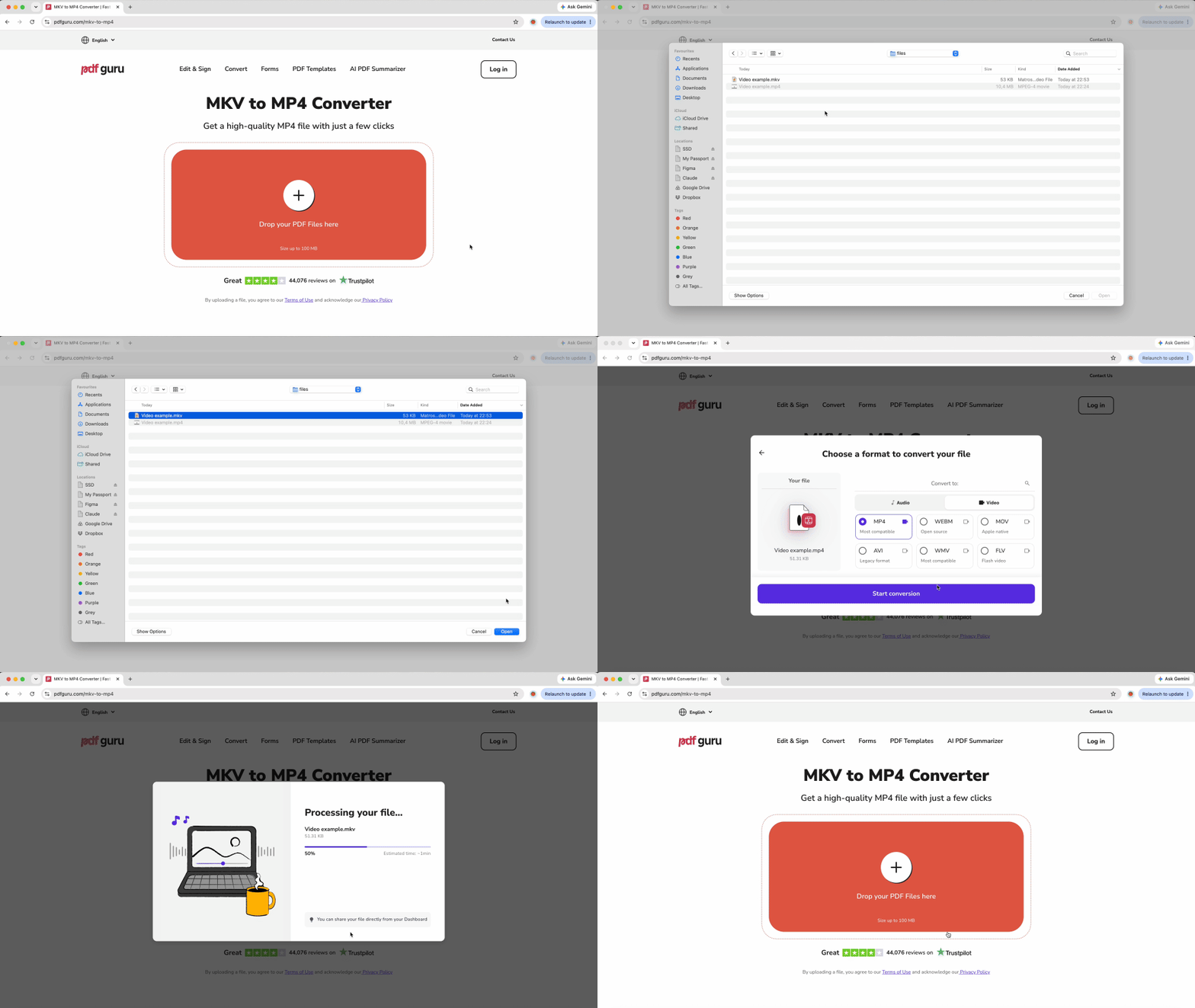
To convert MKV to MP4 without installing software, PDF Guru offers a fast, browser-based solution that works on any device.
- 1Open the MKV to MP4 converter page in any modern browser (Chrome, Safari, Firefox, Edge).
- 2Upload your MKV file by dragging it into the upload zone or clicking to select it from your device.
- 3The tool converts the file automatically — no settings to configure, no codec choices to make.
- 4Download the converted MP4 file once processing finishes.
The converter runs entirely in your browser, so it works on Mac, Windows, Linux, iPhone, and Android. It's ideal for quick one-off conversions when you don't want to install desktop tools.
The tool handles other formats too — the related conversion from MKV to MOV works the same way.
Important limitation: For large MKV files such as full-length movies, TV episodes, or gameplay recordings — which typically range from 1 GB to 8 GB — use one of the desktop methods below. Most online converters have file size limits (usually around 100 MB) that make them impractical for the high-definition video files most people are trying to convert. This isn't a flaw; it's a realistic constraint of browser-based tools. Desktop software handles any file size and gives you full control over quality and output settings.
How to convert MKV to MP4 on Mac
Critical fact for Mac users: QuickTime Player on macOS does NOT support MKV files at all. It cannot play them, and it cannot convert them. Every method below requires installing third-party software — there is no native macOS solution for working with MKV files.
VLC Media Player

VLC is a open-source media player that plays nearly every video format and includes a built-in converter.
- 1Download and install VLC Media Player.
- 2Open VLC, then go to File > Convert / Stream in the menu bar.
- 3Click Open Media, select your MKV file, then click Choose.
- 4In the Convert window, set the Profile dropdown to Video - H.264 + MP3 (MP4).
- 5Click Save as File, click Browse to choose a destination folder, type a filename ending in
.mp4, then click Save. - 6Click Start to begin the conversion.
For a lossless container-swap conversion that preserves 100% of the original quality (see the dedicated section below), you can edit VLC's profile settings to disable re-encoding. This method works when your MKV already contains H.264 video and AAC audio, which is the case for most downloaded content.
HandBrake (open-source)

HandBrake is a powerful video transcoder with a clean interface and extensive format support. Note that HandBrake always re-encodes video — even if your MKV is already in H.264 format, HandBrake decodes and re-encodes it, which takes time and slightly degrades quality. Use HandBrake when you actually need to change the codec, reduce file size, or burn subtitles into the video permanently.
- 1Download and install HandBrake.
- 2Click Open Source and select your MKV file, or drag it into the HandBrake window.
- 3Under the Summary tab, set Format to MP4.
- 4Choose a preset from the right panel — Fast 1080p30 works well for most HD content.
- 5(Optional) Click the Subtitles tab to choose which subtitle tracks to include and whether to burn them in.
- 6(Optional) Click the Audio tab to select which audio tracks to keep.
- 7Click Start Encode at the top.
HandBrake is excellent when you need fine-grained control over output settings, but for a simple how to convert MKV file to MP4 task where quality preservation matters, the lossless methods below are faster and better.
FFmpeg via Homebrew (advanced, fastest lossless)
FFmpeg is a command-line tool favored by advanced users for its speed and power. It can perform a lossless container swap in seconds.
- 1Install Homebrew by pasting the install command into Terminal.
- 2Once Homebrew is installed, run
brew install ffmpegin Terminal. - 3
- 4Run the command:
ffmpeg -i input.mkv -c copy output.mp4(replaceinput.mkvandoutput.mp4with your actual filenames).
The -c copy flag tells FFmpeg to copy the video and audio streams without re-encoding, preserving perfect quality. A 5 GB file converts in 10–30 seconds. This is the fastest and highest-quality method available for how to convert MKV to MP4 (Mac devices).
How to convert MKV to MP4 on Windows
VLC Media Player (most popular)
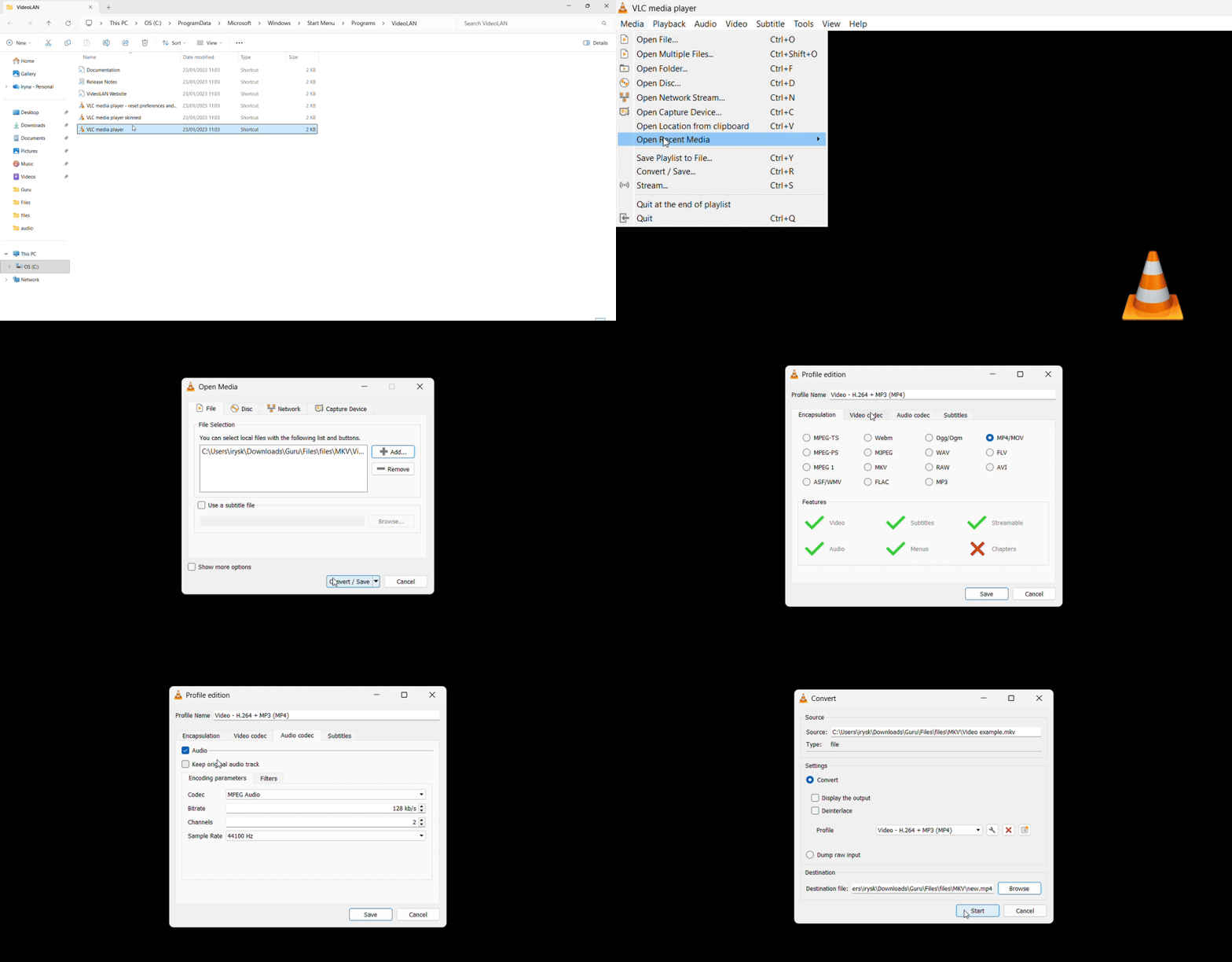
VLC on Windows works almost identically to the Mac version, with a slightly different menu layout.
- 1Download and install VLC Media Player.
- 2Open VLC, then go to Media > Convert / Save (or press Ctrl+R).
- 3Click Add, select your MKV file, then click Convert / Save at the bottom.
- 4In the Profile dropdown, select Video - H.264 + MP3 (MP4).
- 5To convert losslessly instead (container swap), click the wrench/edit icon next to the Profile dropdown. In the Encapsulation tab, select MP4/MOV. In the Video codec tab, uncheck Video to keep the original video stream. In the Audio codec tab, uncheck Audio to keep the original audio stream. Click Save to close the profile editor.
- 6Click Browse, type a filename ending in
.mp4(VLC may not append the extension automatically), choose a destination, then click Save. - 7Click Start to begin the conversion.
The lossless container-swap method using VLC finishes in seconds and preserves the exact quality of the original MKV file, making it the best option for most users trying to figure out how to convert MKV file to MP4 without degrading video quality.
HandBrake (open-source)
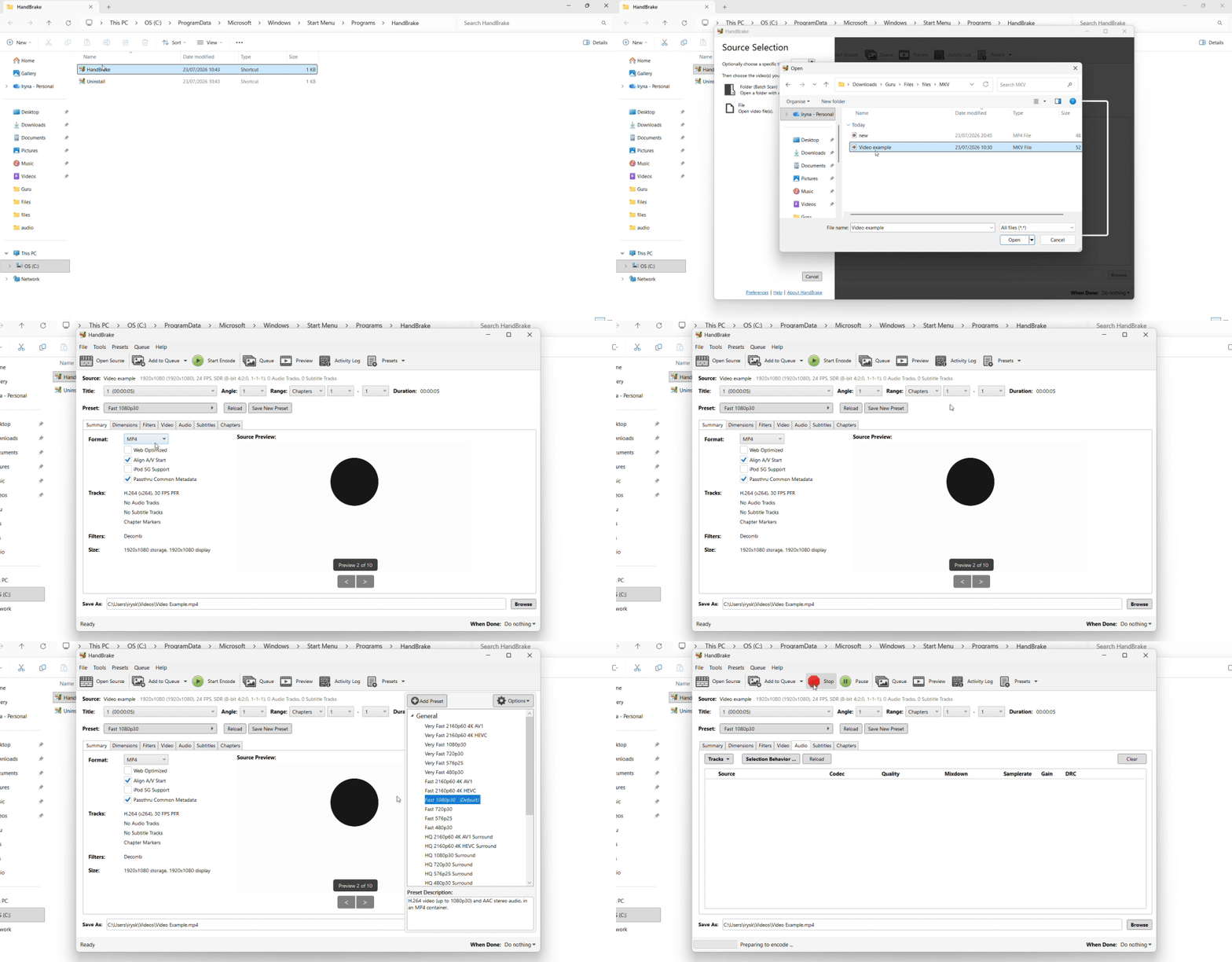
The Windows version of HandBrake works the same as the Mac version.
- 1Download and install HandBrake.
- 2Click Open Source and select your MKV file, or drag it into the HandBrake window.
- 3Under the Summary tab, set Format to MP4.
- 4Select a preset such as Fast 1080p30 from the right panel.
- 5Use the Subtitles and Audio tabs to choose which tracks to include.
- 6Click Start Encode.
Remember: HandBrake always re-encodes, so a 2-hour 1080p movie can take 20–60 minutes to convert depending on your CPU. Use it when you need to change codecs, shrink file size, or burn in subtitles — not for simple format conversion.
FFmpeg (command line, advanced)
FFmpeg for Windows works identically to the Mac version once installed.
- 1Download FFmpeg (choose a Windows build from the download page).
- 2Extract the archive and add the
binfolder to your system PATH, or navigate to thebinfolder in Command Prompt. - 3Run the command:
ffmpeg -i input.mkv -c copy output.mp4
The conversion finishes in seconds at zero quality loss for files with compatible codecs. This is the gold standard for how to convert MKV to MP4 when you want perfect quality and maximum speed.
Lossless MKV to MP4 conversion (container swap)
Here's the single most important fact about MKV to MP4 conversion that most tutorials bury or skip entirely: if your MKV file contains H.264 video and AAC audio — which describes the vast majority of downloaded movies, anime episodes, recorded gameplay, and TV shows — you can convert it to MP4 without re-encoding a single frame. This means zero quality loss and conversions that finish in seconds instead of hours.
This is possible because MKV and MP4 are both containers that wrap video and audio streams. The streams themselves are encoded in a specific codec (H.264 for video, AAC for audio). When the codecs inside your MKV are compatible with MP4, the conversion is just a repackaging operation — copying the streams from one container into another without touching the actual video or audio data. This process is called a "container swap" or "stream copy."
FFmpeg command-line (all platforms)
The fastest and most reliable lossless method is FFmpeg:
ffmpeg -i input.mkv -c copy output.mp4The -c copy flag is the key: it tells FFmpeg to copy both video and audio streams without re-encoding. A 5 GB MKV file converts to MP4 in 10–30 seconds, limited only by your disk read/write speed. This command works identically on Mac, Windows, and Linux.
VLC container-swap settings
You can achieve the same lossless result using VLC's profile editor (detailed in the Mac and Windows sections above). The critical steps are:
- Set Encapsulation to MP4/MOV
- Uncheck the Video and Audio codec boxes to disable re-encoding
- Keep the original streams intact
This gives you a GUI option for users who prefer not to use the command line.
When NOT to use container-swap
Container swap only works when the codecs inside your MKV are MP4-compatible. If your MKV contains codecs that MP4 cannot reference cleanly — such as DTS-HD audio, MPEG-2 video, or VobSub bitmap subtitles — the resulting MP4 may have missing audio, playback errors, or subtitle issues. In those cases, you need to re-encode using HandBrake to convert the incompatible codecs into MP4-friendly formats (H.264 video, AAC audio).
For most users asking how to convert MKV to MP4, the container-swap method is the right answer. It's faster than HandBrake's re-encoding by a factor of 50–100, preserves perfect quality, and handles the typical use case: making a downloaded or recorded video file compatible with iPhones, YouTube, or your Smart TV. HandBrake is a powerful tool, but reach for it only when you need to change codecs, reduce file size, or burn subtitles into the video permanently.
How to convert MKV to MP4 online
Online converters appeal to users who want cross-device compatibility, no software installation, and fast results for small files. Before uploading any MKV file to a web-based tool, check these four factors:
- 1File size limit: Most online converters cap uploads at 100 MB to 1 GB. Since real-world MKV files — movies, TV episodes, gameplay recordings — typically range from 1 GB to 8 GB, online tools reject the majority of files users actually want to convert. Always check the size limit before uploading.
- 2Privacy policy and file handling: Understand how long your file sits on the service's servers and how it's handled after conversion.
- 3Watermark or signup walls: Some services promise conversion but impose watermarks on the output or lock the download behind account creation mid-process.
- 4HTTPS encryption: Verify the site uses HTTPS to encrypt your file during upload and download.
Privacy and security tips: Do not upload copyrighted movies or TV shows to random online converters. Your file sits on someone else's server, and you have no control over how it's stored or who accesses it. Similarly, do not upload private recordings — family videos, business presentations, personal content — to unfamiliar services without reviewing their privacy policy.
PDF Guru offers automatic file processing and clear workflows. For users who need to convert multiple formats or work with other video types, the general video converter hub at PDF Guru handles various format conversions. If you're working with MOV files as well, the MKV to MOV converter handles that format conversion with the same browser-based workflow.
The reality check: online tools excel at converting short clips, smartphone recordings, and lightweight files under 100 MB. For anything larger — which includes most of the MKV files people actually need to convert — desktop software is faster, more reliable, and gives you full control over quality and output settings.
Handling subtitles and multiple audio tracks
MKV files often contain features that MP4 cannot fully replicate, making subtitle and audio track handling a common pain point when converting:
- 1Multiple subtitle tracks: Original language, English subtitles, closed captions, director's commentary subtitles, fan-translated subs — MKV can bundle them all with full styling and embedded fonts.
- 2Multiple audio tracks: Original language audio, English dub, director commentary, descriptive audio for accessibility.
- 3Chapter markers: Jump points for scene navigation.
- 4Attached fonts and metadata: Custom subtitle fonts and detailed file information.
When you convert to MP4, some of these features are lost or simplified because MP4 has more limited multi-track support.
HandBrake subtitles tab
HandBrake gives you two options for subtitle handling:
- Burn In: The subtitle is permanently rendered onto the video frames. It always appears and cannot be turned off during playback. Use this when you need guaranteed subtitle visibility across all devices.
- Pass-Thru: The subtitle is kept as a separate, selectable track in the MP4 file. Only certain text-based subtitle formats (SRT, WebVTT) transfer cleanly this way. Bitmap subtitles (VobSub, PGS) often don't work with Pass-Thru.
In the Audio tab, choose which audio tracks to include. HandBrake can keep multiple audio tracks, but each one increases the output file size.
FFmpeg track selection
FFmpeg offers the most control over which tracks to include using the -map flag:
ffmpeg -i input.mkv -map 0:v:0 -map 0:a:1 -map 0:s:2 -c copy output.mp4This example selects the first video stream, the second audio stream, and the third subtitle stream. Advanced users can script complex track selections this way.
Online converters (limited)
Most online converters keep only the default audio track and drop all other tracks — subtitles, alternate audio, commentary. If preserving multiple audio or subtitle tracks matters to you (common for anime, foreign films, or movies with commentary), use HandBrake or FFmpeg with explicit track selection. Do not rely on online converters for this use case.
Tips for better MKV to MP4 conversion
- 1Try the lossless container-swap method first: If your MKV contains H.264 video and AAC audio (the common case for most downloaded content), use FFmpeg's
ffmpeg -i input.mkv -c copy output.mp4command or VLC's container-swap profile settings. This gives you perfect quality in seconds instead of the 20–60 minutes HandBrake takes to re-encode the same file. - 2Use HandBrake only when you actually need to re-encode: Reach for HandBrake when you need to change the codec, reduce file size for storage or upload limits, or burn subtitles into the video permanently. For simple how to convert MKV file to MP4 tasks where the goal is compatibility, not codec change, HandBrake's re-encoding is unnecessary and degrades quality slightly.
- 3Keep the original MKV file until you verify the MP4 plays correctly: After converting, play the MP4 file all the way through — or at least skip through several scenes — to confirm the video plays smoothly, the right audio track is present, and subtitles (if included) display properly. Only then delete the original MKV.
- 4For large MKV files, use desktop tools: Movies, HD TV episodes, and recorded gameplay typically exceed the 100 MB–1 GB file size limits of online converters. Most online tools either reject the upload immediately or queue it for hours. Desktop software handles files of any size and converts faster.
- 5Mac users: Install VLC even if you only need it for playback: QuickTime Player cannot open MKV files at all, so every Mac user who works with video should have VLC installed. It serves double duty as both a universal media player and a format converter.