

Converting an AVI file to MP4 brings your video into the modern device ecosystem. On Mac, use VLC Media Player or HandBrake for reliable conversion. On Windows, VLC, Microsoft Clipchamp, or HandBrake handle the job effectively. For browser-based conversion that works on any device, an online tool like PDF Guru processes files without installation.
Why convert AVI to MP4?
AVI files create compatibility headaches across the modern device landscape. Understanding why you need to convert AVI to MP4 reveals the depth of the problem.
Device rejection is widespread. iPhones and iPads cannot play AVI natively — the format simply won't load in iOS's native video player. Most Smart TVs refuse AVI playback, and social platforms including Instagram, TikTok, and YouTube don't accept AVI uploads. You can't share an AVI file on these platforms without converting first.
Codec dependency causes playback failures. Even Windows Media Player and QuickTime often fail on AVI files because AVI requires the specific codec used inside to be installed on your system. AVI files typically contain DivX, Xvid, Indeo, or Cinepak codecs, and many of these legacy codecs are no longer maintained or shipped with modern operating systems. Without the right codec installed, the file won't play.
File size inefficiency wastes storage. AVI files are typically larger than equivalent MP4s because they use older, less efficient codecs. A DivX or Xvid AVI file occupies more disk space than the same video encoded with H.264 inside an MP4 container.
Sharing becomes impossible. When you send an AVI file to someone with a modern device, they can't open it without installing extra software. Recipients on iPhones, modern Macs, or Smart TVs hit immediate playback failures.
AVI is a legacy format from the DVD-ripping and camcorder era of the late 1990s through mid-2000s. Learning how to convert AVI files to MP4 brings your video collection into the current device ecosystem where MP4 is the universal standard.

How to convert AVI to MP4 using PDF Guru
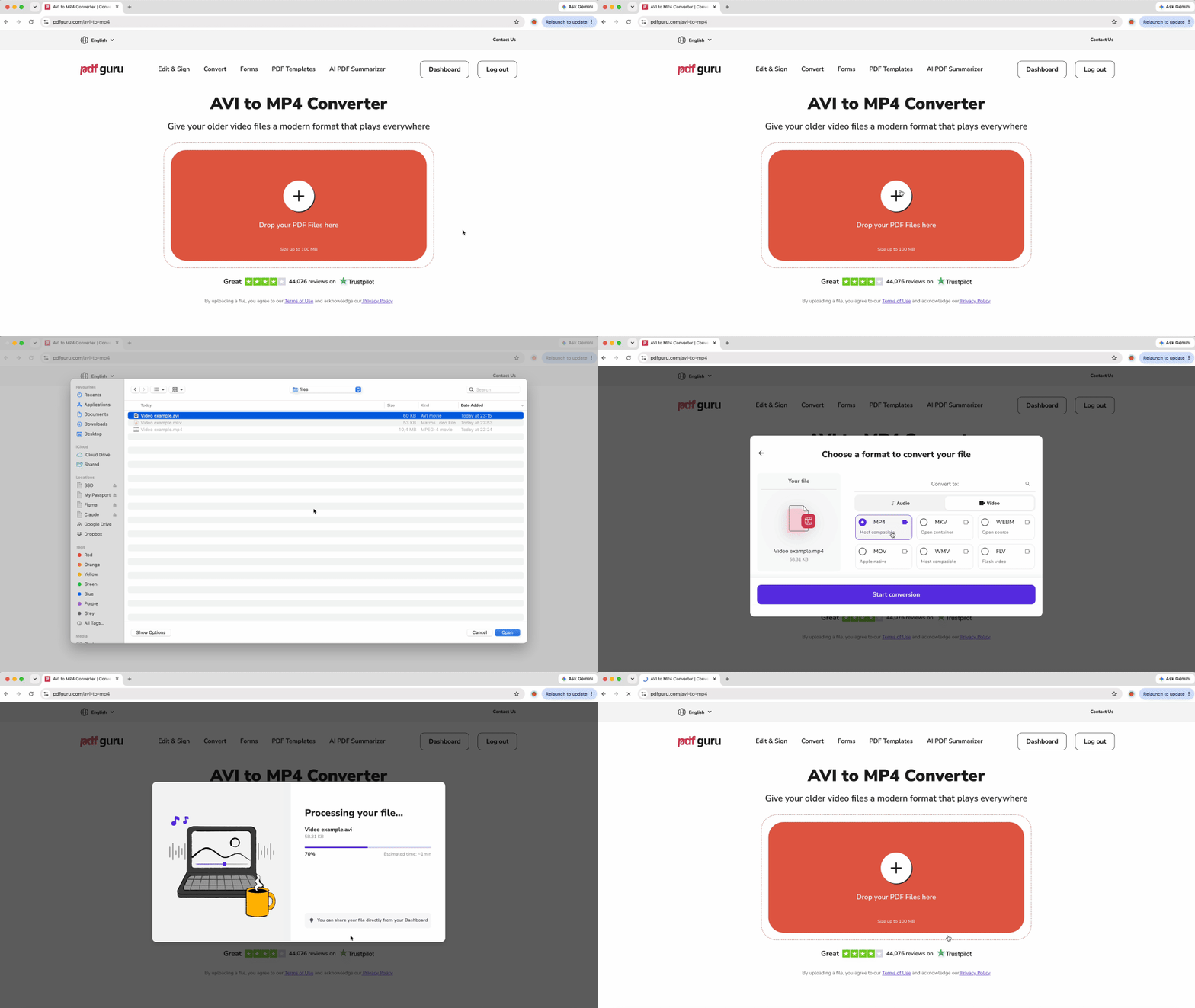
PDF Guru's browser-based converter handles AVI to MP4 conversion automatically across any device. Here's how to convert AVI files to MP4 online:
- 1
- 2Upload your AVI file by dragging it onto the page or clicking to browse your files.
- 3The tool automatically re-encodes your video into H.264 and AAC inside an MP4 container.
- 4Download the completed MP4 file when processing finishes.
The browser-based approach works on Mac, Windows, Linux, iPhone, and Android without installing software. PDF Guru's video converter suite handles multiple video formats through the same streamlined interface.
File size consideration: Most online converters enforce file size limits around 100 MB. Typical legacy AVI files — especially 90-minute DVD rips that range from 700 MB to 1.5 GB, or extended camcorder footage — exceed this limit. For large AVI files, the desktop methods in the sections below handle files of any size. The online converter works best for short clips, low-resolution recordings, and files under 100 MB.
How to convert AVI to MP4 on Mac
Modern macOS presents a critical compatibility issue: QuickTime X on macOS Catalina and later does NOT support exporting AVI to MP4. Apple removed this feature from recent QuickTime versions. Older QuickTime 7 Pro could convert some AVI codecs but is no longer supported. QuickTime also struggles to even play many AVI files because it lacks the required codecs.
The methods below cover everything you need to know about how to convert AVI to MP4. Mac users will always need third-party software — there is no native solution.
VLC Media Player
VLC Media Player is a trusted tool that handles AVI conversion reliably on Mac:

- 1Open VLC Media Player and select File > Convert/Stream (or press Shift+Command+S).
- 2Click Open Media and select your AVI file.
- 3Under Choose Profile, select Video - H.264 + MP3 (MP4).
- 4Click Save as File, browse to your destination folder, type a filename ending in .mp4, and click Go.
Processing time runs proportional to your video length. A 30-minute AVI file typically takes 10 to 15 minutes to convert on a modern Mac.
HandBrake
HandBrake is an open-source encoder that produces high-quality MP4 output:

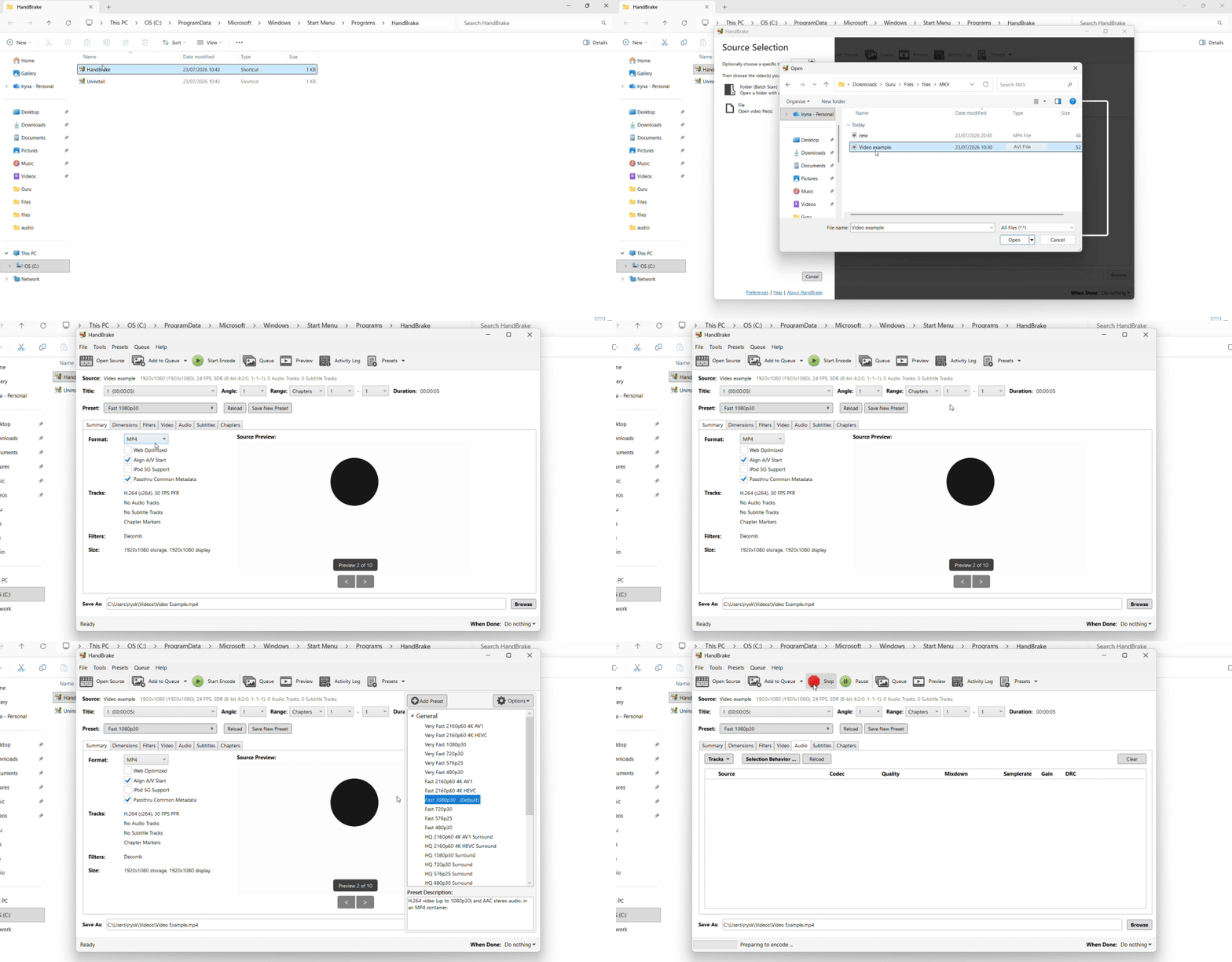
- 1Click Open Source and select your AVI file, or drag it into the HandBrake window.
- 2Under the Summary tab, set Format to MP4.
- 3Select a preset — Fast 1080p30 works well for most AVI files.
- 4Manually change the filename to end in .mp4 (HandBrake defaults to .m4v, which is technically MP4-compatible but causes confusion).
- 5Click Start Encode.
For quality control, HandBrake's CRF setting between 18 and 23 balances output quality and file size without dramatically inflating the MP4.
FFmpeg via Homebrew (advanced)
For batch conversion and scripting, FFmpeg handles command-line AVI processing:
- 1Install Homebrew if you don't have it, then run
brew install ffmpegin Terminal. - 2
- 3Run the command:
ffmpeg -i input.avi -codec:v libx264 -codec:a aac -b:a 192k output.mp4
This method works best for users comfortable with the command line who need to convert large collections of AVI files. You can script FFmpeg to process entire folders of videos in sequence.
How to convert AVI to MP4 on Windows
Windows Media Player cannot convert AVI files to MP4. This limitation surprises many users. Windows Media Player also often cannot even play many AVI files without third-party codec packs because Microsoft no longer ships the legacy codecs — Xvid, DivX, Cinepak, and Indeo — that older AVI files depend on. Windows users need dedicated conversion software.
VLC Media Player
VLC Media Player handles AVI conversion reliably on Windows:
- 1Open VLC and select Media > Convert/Save (or press Ctrl+R).
- 2Click Add and select your AVI file.
- 3Click the Convert/Save button at the bottom.
- 4Under Profile, select Video - H.264 + MP3 (MP4).
- 5Click Browse to choose your destination folder and type your filename explicitly as "filename.mp4" because VLC may not append the extension automatically.
- 6Click Start.
Microsoft Clipchamp (Windows 11 built-in)
Clipchamp comes pre-installed on Windows 11 and provides the simplest conversion path:
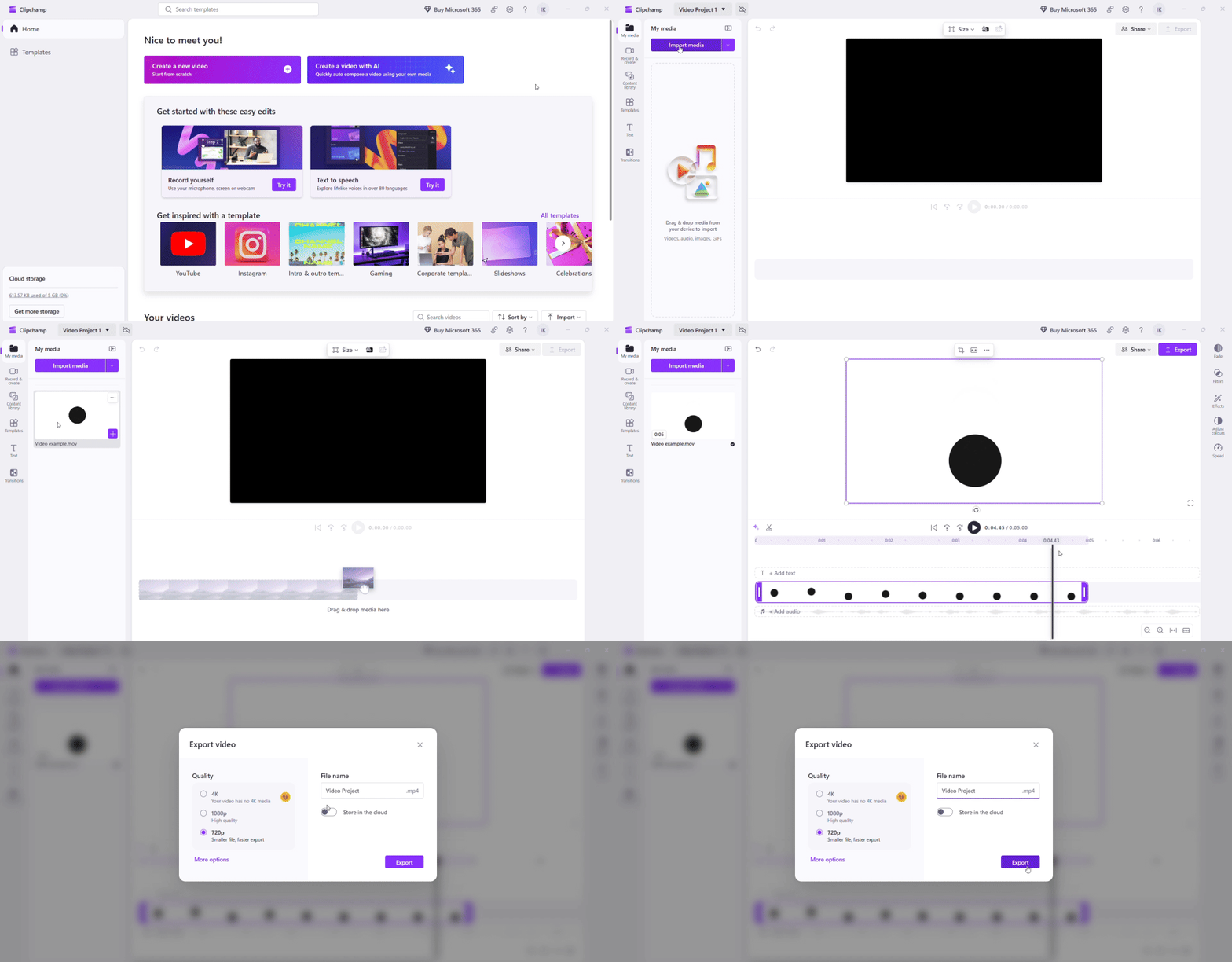
- 1Launch Clipchamp from your Start menu.
- 2Click Create a new video.
- 3Click Import media and drag your AVI file into the media library.
- 4Drag the AVI file onto the timeline.
- 5Click Export.
All Clipchamp exports default to MP4 format. This is the easiest option if you're running Windows 11.
HandBrake
HandBrake on Windows works identically to the Mac version:
- 1Drag your AVI file into HandBrake.
- 2Set Format to MP4 under the Summary tab.
- 3Choose a preset like Fast 1080p30.
- 4Rename the output file to .mp4 if HandBrake defaults to .m4v.
- 5Click Start Encode.
FFmpeg (advanced)
For command-line conversion and batch processing, download FFmpeg:
- 1Download FFmpeg and install it.
- 2Open Command Prompt and navigate to your AVI file's directory.
- 3Run:
ffmpeg -i input.avi -codec:v libx264 -codec:a aac -b:a 192k output.mp4
This approach handles scripted batch conversions for large AVI collections.
Understanding AVI codecs and why conversion takes time
AVI is a container format — a wrapper that holds video and audio streams. What actually plays back is the codec inside that container. Understanding this distinction explains why you need to know how to convert AVI to MP4 and why the process takes time.
AVI's most common codecs are DivX and Xvid, both implementations of MPEG-4 ASP from the DVD-ripping era. Older AVI files also contain legacy codecs including Cinepak, Indeo, MJPEG (motion JPEG), and DV from camcorder tape capture. H.264 inside an AVI container is technically possible but rare in practice.
This matters for conversion because MP4 containers don't natively use these legacy codecs. Unlike MKV-to-MP4 conversion — where the internal H.264 stream often gets repackaged in seconds through a lossless container swap — AVI almost always contains a codec that MP4 doesn't support. The video must be fully re-encoded from its original codec into H.264.
Re-encoding requires real processing time. A one-hour AVI file typically takes 10 to 30 minutes to convert on a modern computer, depending on your quality settings and hardware capabilities. This isn't a limitation of any particular tool — it's the inherent requirement of transcoding video from DivX or Xvid into H.264.
Output quality depends on the bitrate or CRF value you select during encoding. For HandBrake users, CRF 18 to 23 with the H.264 codec produces high-quality output without dramatically inflating file size. Lower CRF numbers mean higher quality but larger files.
How to convert AVI to MP4 online
Online converters provide cross-device convenience without installation. They work best for small AVI files like short clips or low-resolution recordings. If you're exploring how to convert AVI to MP4 through browser-based tools, check these factors before uploading:
File size limits are the biggest constraint for AVI conversion. Most online tools cap uploads at 100 MB, but legacy AVI files routinely exceed this. DVD rips typically range from 700 MB to 1.5 GB. Extended camcorder footage runs even larger. Check the size limit before uploading to avoid discovering restrictions mid-process.
Privacy policies matter for personal content. Review how soon files are handled after conversion. Never upload private home videos, family camcorder footage, or personal recordings to unfamiliar services. Some platforms retain uploaded files indefinitely or use them for unrelated purposes.
Signup walls and watermarks vary by platform. Some tools require account creation before allowing downloads. Others embed watermarks on converted videos. Review the service's requirements before investing time in uploading large files.
HTTPS encryption during upload protects your content. Verify that the converter uses HTTPS (check for the padlock icon in your browser's address bar) before uploading sensitive videos.
Crash recovery capabilities differ. AVI conversions sometimes fail midway due to unsupported codecs. Quality online tools notify users clearly when a conversion fails and explain why. Poor platforms leave users waiting indefinitely with no status updates.
PDF Guru provides browser-based AVI conversion with automatic processing and a transparent workflow. For files under the size limit, the online approach removes the need to install desktop software.
Tips for better AVI to MP4 conversion
These strategies improve conversion outcomes when you're learning how to convert AVI files to MP4:
Identify the AVI's internal codec first. Open the file in VLC Media Player and select Tools > Codec Information. If you see H.264 video and AAC audio listed — rare for AVI but possible — you can attempt a lossless container swap using FFmpeg with the command ffmpeg -i input.avi -c copy output.mp4. This completes in seconds instead of minutes. Most AVI files require full re-encoding instead.
Output H.264 video and AAC audio for maximum compatibility. This combination plays on the widest range of devices. H.265 (HEVC) produces smaller files but doesn't play on older devices. Users on Microsoft Tech Community have reported playback failures when converting to H.265, so stick with H.264 unless you're certain all your target devices support the newer codec.
Keep the original AVI file until you verify the MP4 plays correctly. Don't delete your source file immediately after conversion. Test the MP4 on your target devices — iPhone, Smart TV, web browser — and confirm playback works before removing the original. Quality issues or conversion errors sometimes emerge only during playback testing.
Use HandBrake's queue feature for batch conversions. If you have a large collection of old DVD rips or an archive of camcorder footage, add all files to HandBrake's queue and let them process overnight. Most online tools cap batch uploads or queue multiple files for extended delays. Desktop tools handle batch work efficiently.
Install VLC first if an AVI file refuses to play. VLC bundles its own internal codecs and can usually play and convert AVI files that Windows Media Player and QuickTime cannot even open. If you're troubleshooting a stubborn AVI file, VLC serves as the universal foundation for both playback testing and conversion.
For reversing the process, PDF Guru's MP4 to AVI converter handles the opposite workflow when compatibility with legacy systems requires the older format.