
Converting HTML files to PDF format is one of the most common document workflows for web developers, content creators, and anyone who needs to archive web pages for offline viewing. Whether you're wondering how to turn a webpage into a PDF for easy sharing or how to save HTML as PDF while preserving your carefully crafted formatting, you'll find multiple straightforward methods below. PDFs maintain exact layouts across any platform, making them ideal for distributing HTML content that looks identical whether opened on Windows, Mac, mobile devices, or tablets.
Why convert HTML to PDF?
Transforming HTML files into PDF format offers several practical benefits for both personal and professional use:
- Preserved formatting – PDFs maintain exact layout, fonts, images, and CSS styling across any device or platform, ensuring your HTML content displays identically for every viewer
- Offline access – View web content without an internet connection, perfect for archiving important pages or creating reference materials you can access anywhere
- Print-ready format – PDFs produce reliable, consistent output for physical documents, with proper page breaks and margins that HTML alone can't guarantee
- Secure sharing – Control distribution with password protection, prevent unauthorized editing, and create a portable document format that's universally compatible
These advantages make PDF conversion essential when you need to convert HTML to PDF for reports, presentations, archived web pages, or any HTML file that requires consistent cross-platform display.
How to convert HTML to PDF using PDF Guru
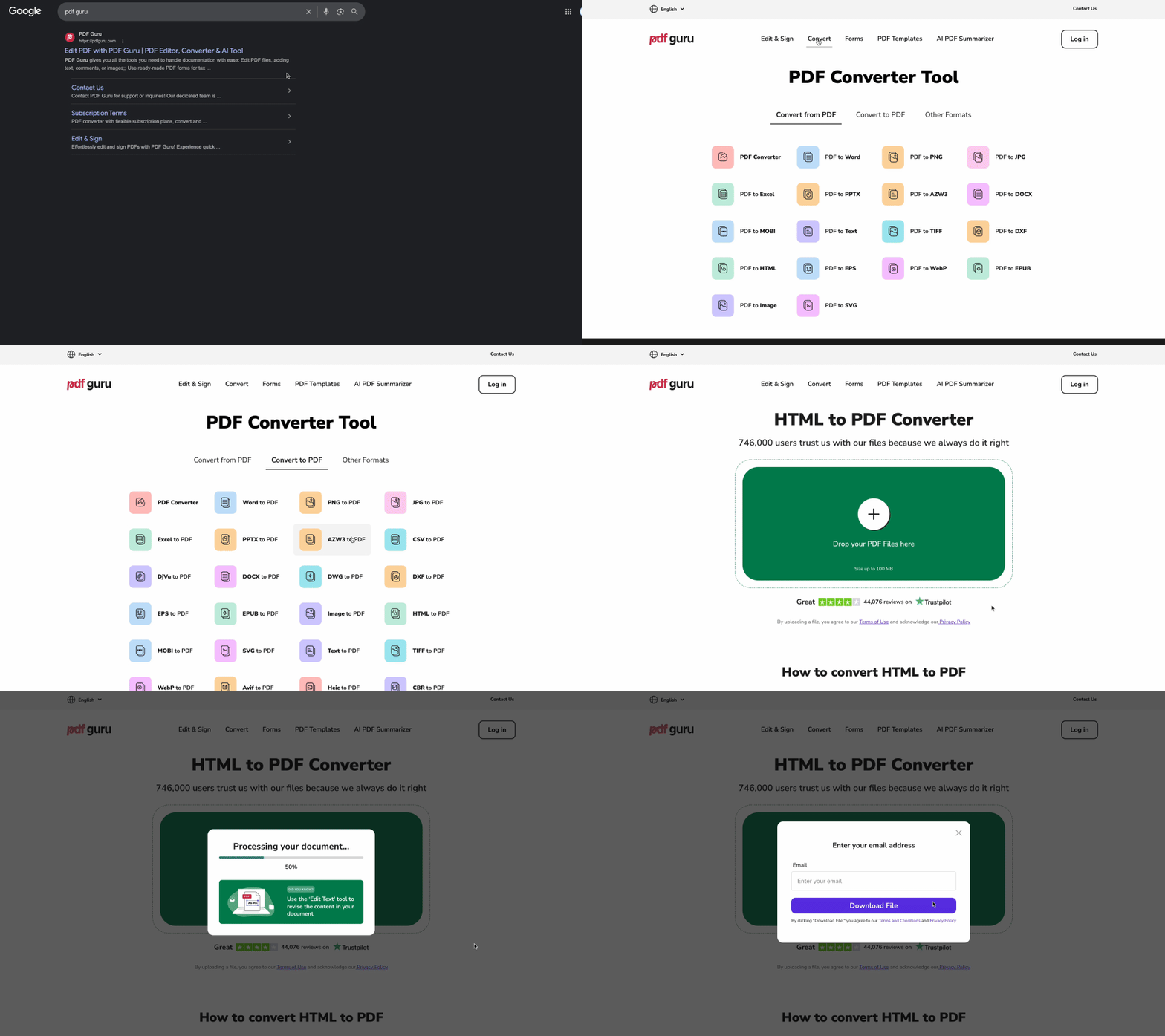
If you're looking for how to convert HTML to PDF online, PDF Guru offers a simple solution. The tool handles HTML file uploads and delivers formatted PDF output in seconds.
- 1
- 2Click "Choose File" or drag and drop your HTML file directly onto the upload area.
- 3Wait a few seconds while the conversion processes automatically.
- 4Click "Download" to save your converted PDF to your device.
The converter preserves your HTML structure, CSS styling, and embedded images during the conversion process. For those wondering how to convert HTML to PDF while maintaining formatting integrity, this method handles most HTML code to PDF conversions reliably, including pages with complex CSS layouts and multiple image formats.
How to save HTML as PDF in Chrome
Chrome's built-in print-to-PDF function offers a quick way to save HTML as PDF directly from your browser. This method works for both local HTML files and live web pages, making it simple to learn how to turn a webpage into a PDF.
On desktop
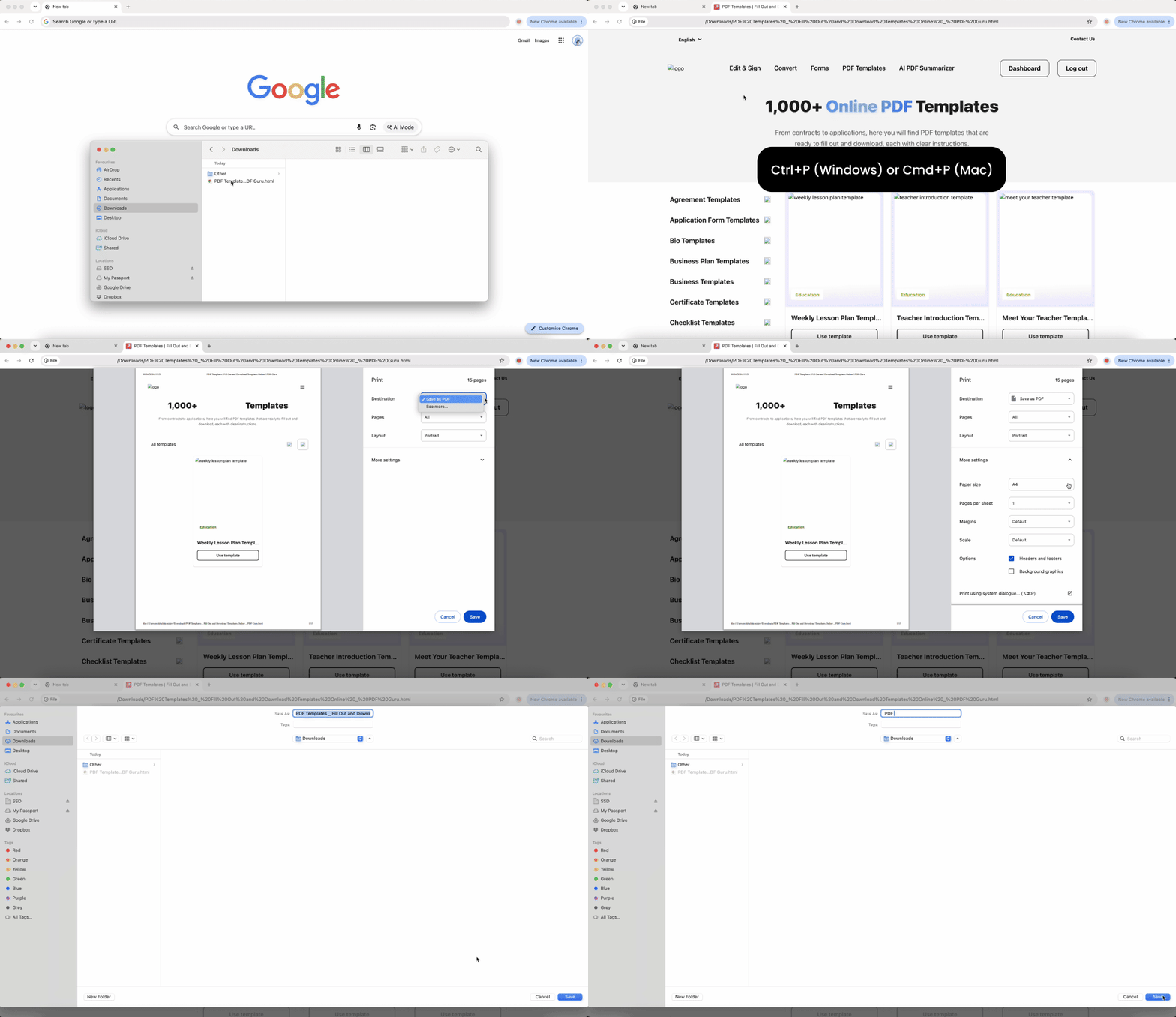
- 1Open the HTML file or web page in Chrome by dragging the file into your browser window or entering the URL.
- 2Press Ctrl+P (Windows) or Cmd+P (Mac) to open the print dialog.
- 3Under "Destination," click the dropdown menu and select "Save as PDF."
- 4Adjust settings like page size (A4 or Letter), margins, and whether to include headers and footers.
- 5Click "Save," choose your desired location, and name your file.
This browser-based approach gives you complete control over page layout and orientation before generating the final PDF document.
On mobile
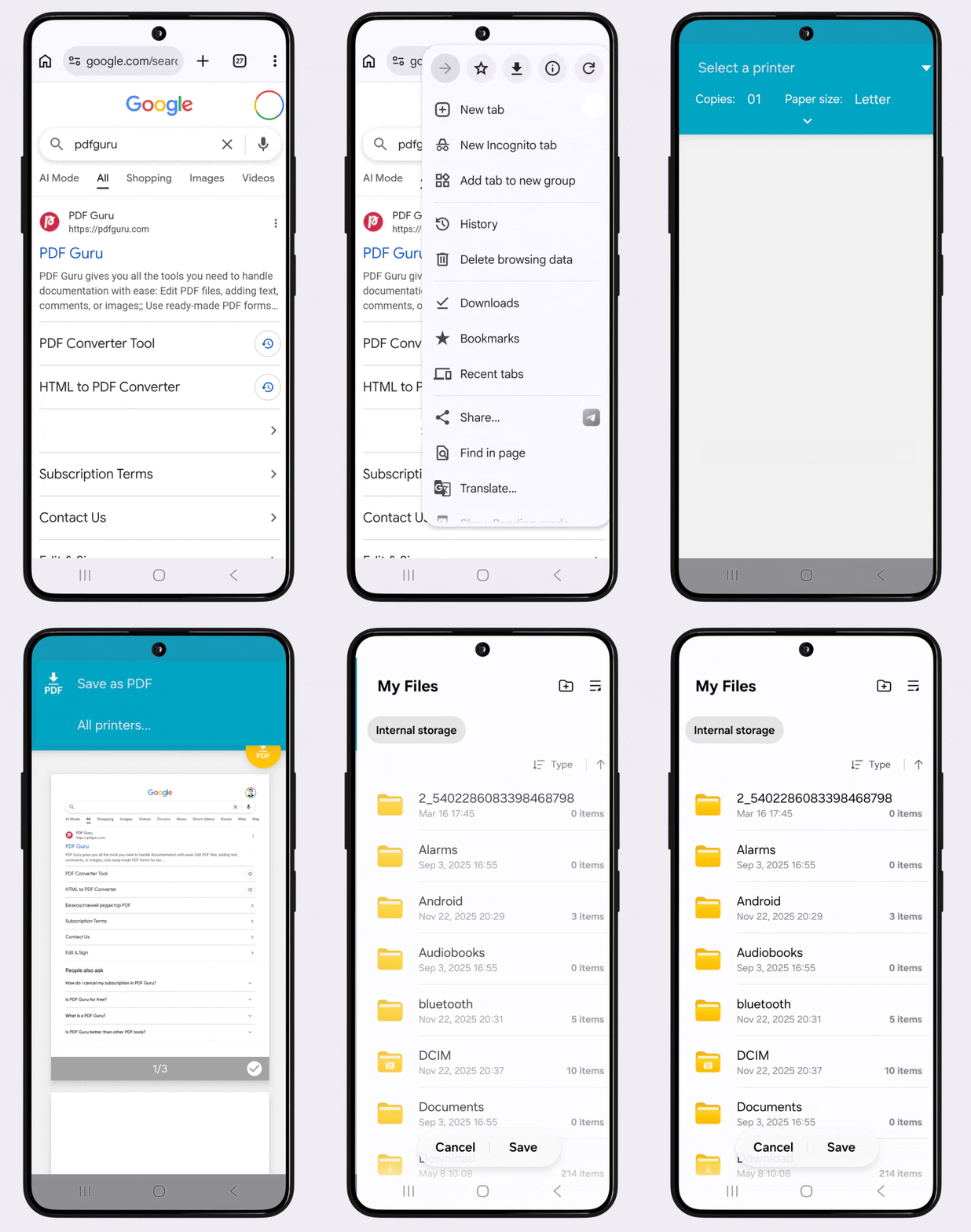
- 1Open the web page in the Chrome mobile app (Android or iOS).
- 2Tap the three-dot menu icon in the top-right corner, then select "Share."
- 3
- 4In the printer options screen, select "Save as PDF" from the available destinations.
- 5Tap the PDF icon or "Save" button to download the converted file to your device.
When you need to know how to turn a webpage into a PDF on your phone, this mobile Chrome method provides the most accessible solution without requiring additional apps.
How to convert HTML to PDF on Mac
Mac users have multiple native options for converting HTML files to PDF format, thanks to built-in features in Safari and the system-wide print function.
Using Safari
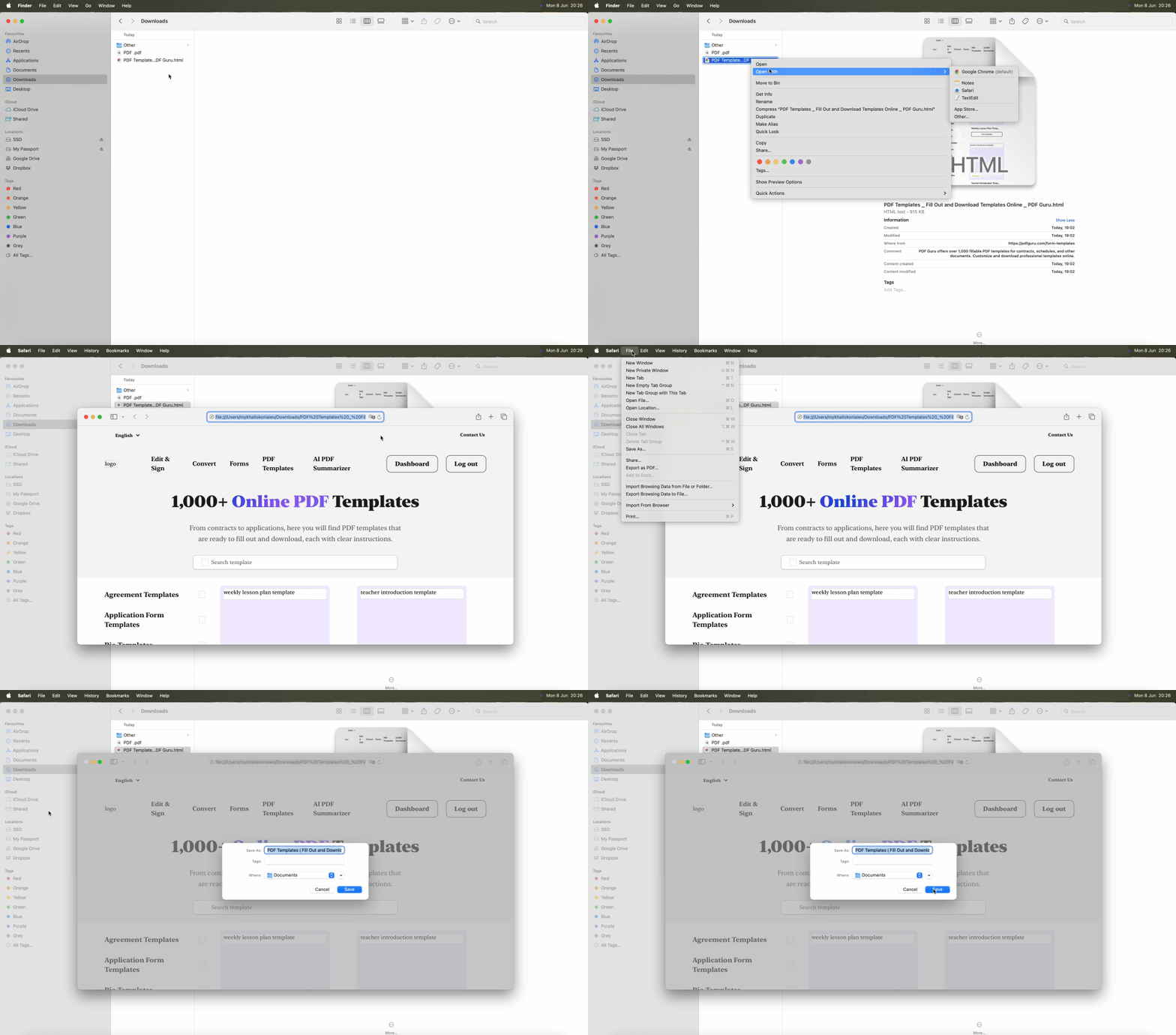
- 1Open your HTML file in Safari by dragging it into the browser or using File → Open.
- 2Go to the File menu in the top menu bar.
- 3Select "Export as PDF" from the dropdown options.
- 4Choose your save location, enter a filename, and click "Save."
Safari's export function maintains formatting and hyperlinks, making it ideal for archiving web pages as PDFs. This streamlined workflow shows how to turn HTML into PDF on Mac effectively.
Using the print dialog
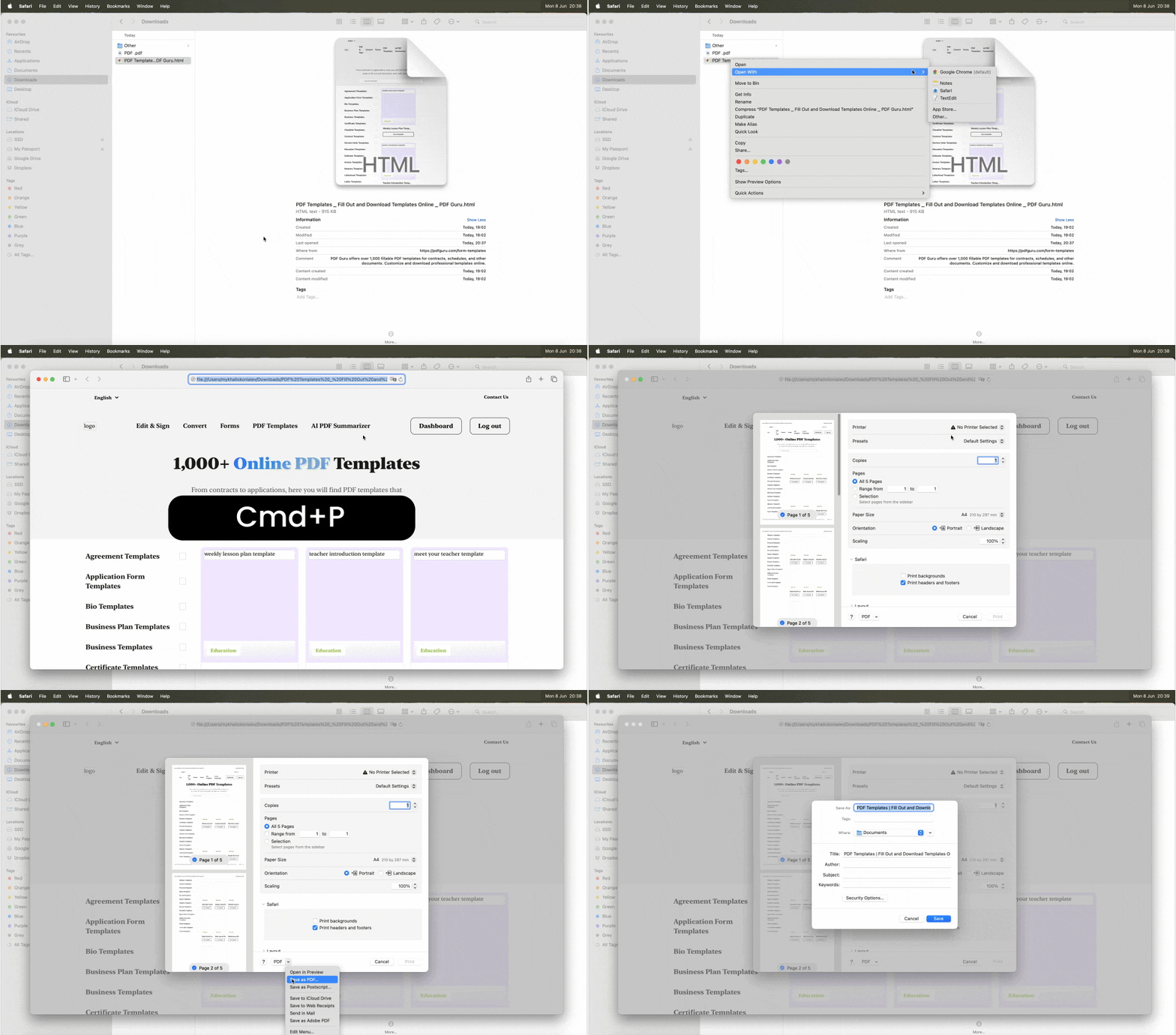
- 1Open your HTML file in any Mac browser (Safari, Chrome, or Firefox).
- 2Press Cmd+P to open the print dialog.
- 3Click the "PDF" dropdown button in the lower-left corner of the dialog.
- 4Select "Save as PDF" from the menu.
- 5Name your file, choose a destination, and click "Save."
Both methods handle how to convert HTML files to PDF on Mac effectively, with the print method offering additional options like adding passwords or reducing file size during the save process.
How to convert HTML to PDF on Windows
Windows provides several straightforward approaches to HTML-to-PDF conversion, leveraging both native features and browser capabilities.
Using Microsoft Edge
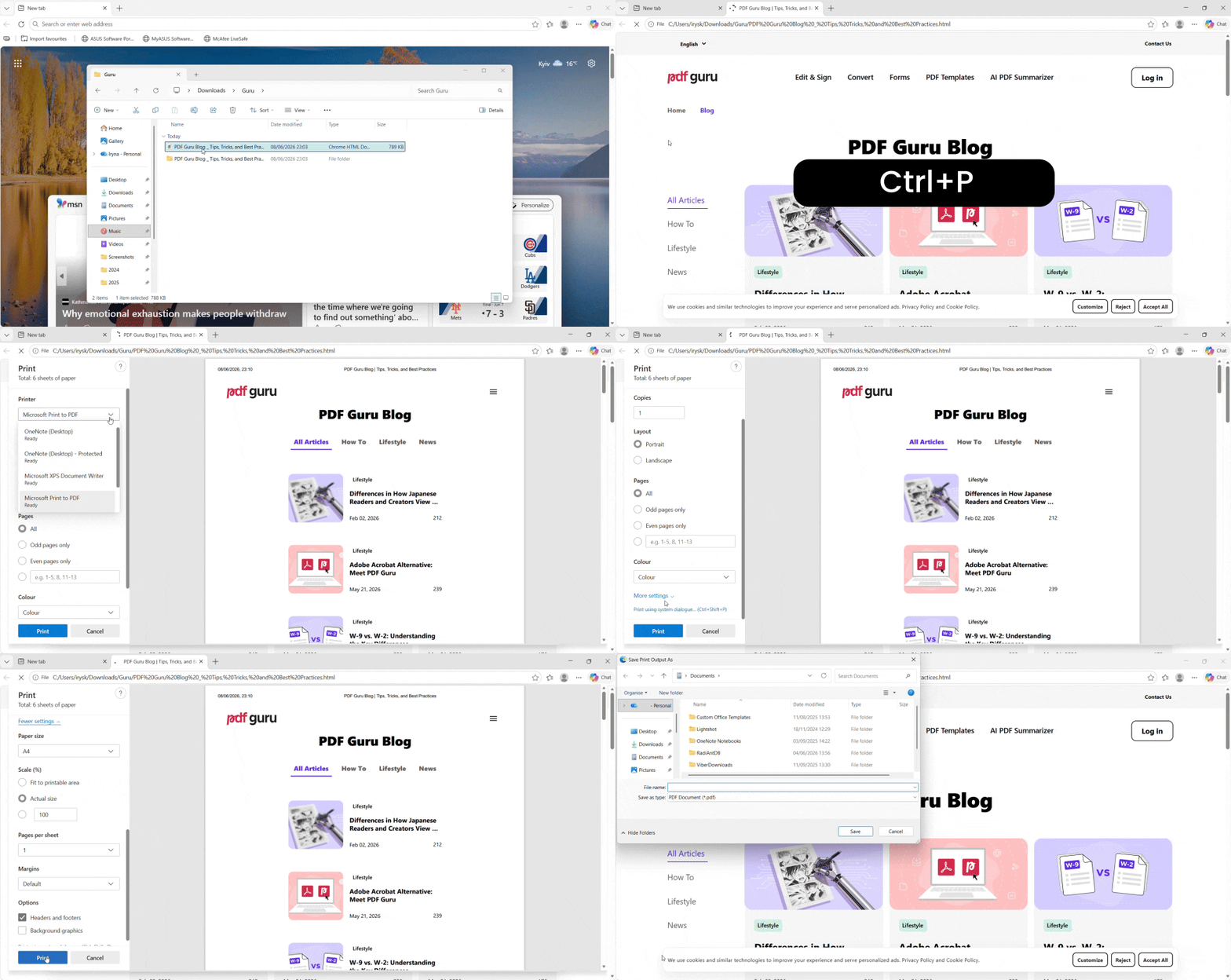
- 1Open your HTML file in Edge by dragging it into the browser window.
- 2Press Ctrl+P or click the three-dot menu (···) and select "Print."
- 3Under "Printer," select "Microsoft Print to PDF" from the dropdown.
- 4Configure layout settings, page orientation, and margins as needed.
- 5Click "Print," then choose your save location and filename.
Edge's rendering engine produces consistent output that preserves most HTML formatting and CSS styling, demonstrating how to change HTML to PDF formaton Windows machines.
Using Chrome on Windows
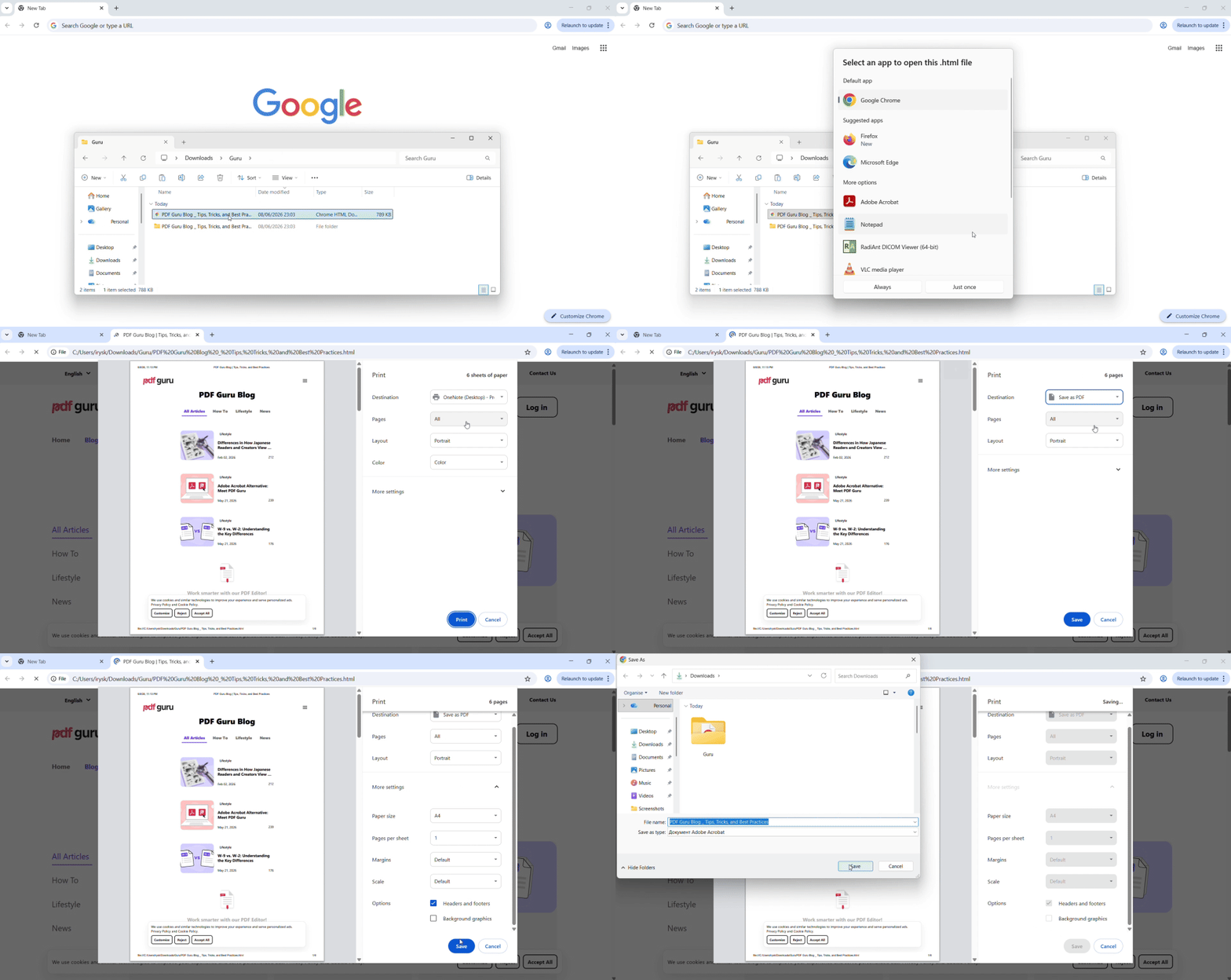
- 1Open your HTML file in Chrome.
- 2Press Ctrl+P to open the print dialog.
- 3Select "Save as PDF" as your destination.
- 4Adjust settings like paper size and margins.
- 5Click "Save" and choose your destination folder.
Chrome's print-to-PDF method works identically on Windows, providing another reliable option for HTML file to PDF conversion.
How to convert HTML files to PDF online
Online converters offer convenience when you need a quick conversion without installing software. These browser-based tools work on any device with internet access, making them ideal for one-off conversions or situations where you can't install desktop applications.
PDF Guru provides a privacy-focused online conversion platform that processes HTML files directly in your browser. The service works across Windows, Mac, Linux, and mobile platforms.
When evaluating online tools for how to convert HTML files to PDF, consider these factors:
- Privacy policies – Review how the service handles uploaded files before submitting sensitive documents
- File handling – Choose reputable platforms with clear data practices if you're converting confidential HTML content
- Connection security – Look for HTTPS encryption and secure file transfer protocols
- Convenience trade-offs – Online converters excel at quick conversions but may not offer the advanced formatting controls available in desktop applications
For most general-purpose HTML to PDF conversion tasks, online tools provide the fastest path from HTML file to finished PDF document, particularly when working on shared or public computers where software installation isn't possible.
Tips for better HTML to PDF conversion
Optimize your conversion workflow with these practical techniques that ensure consistent, professional PDF output:
- 1Use @media print CSS rules – Add print-specific stylesheets to control how elements appear in PDF output. Hide navigation menus, adjust margins, and set page breaks with CSS rules like
@media print { .no-print { display: none; } }to create cleaner converted documents. - 2Optimize image formats – Choose PNG for graphics requiring transparency (logos, diagrams with alpha channels) and JPEG for photographs. PNG files preserve sharp edges and text overlays, while JPEGs offer smaller file sizes for photo-heavy HTML pages, balancing quality with PDF document size.
- 3Set correct page dimensions – Select A4 (210×297mm, standard internationally) or Letter (8.5×11 inches, US standard) size before converting. Mismatched paper size settings create awkward scaling and margin issues in the final PDF, particularly when printing or sharing across different regions.
- 4
- 5Test hyperlinks after conversion – Verify that internal anchors and external URLs remain functional in your generated PDF. Most modern converters preserve hyperlinks, but complex JavaScript-based navigation or dynamically loaded content may break during the HTML to PDF conversion process. Open your PDF and spot-check several links to ensure proper functionality.
When you need to convert HTML to PDF frequently, these optimization steps streamline your workflow and produce more professional, consistently formatted PDF files. Pay particular attention to CSS print rules if you're working with HTML file conversions that contain web-specific design elements not intended for PDF format.