
Converting WebM files to MP4 solves the single biggest compatibility problem in digital video today. If you're wondering how to convert WebM to MP4, you've likely hit the wall where your iPhone won't play the file, your video editor rejects it at import, or a colleague can't open the video you sent. The steps below walk you through every method — from one-click browser tools to desktop software — so you can get a working MP4 file in minutes.
Why convert WebM to MP4?
WebM is an excellent format for the web. It delivers smaller files at comparable quality, is royalty-free, and plays natively in every modern browser. But outside the browser, WebM is practically invisible — which is exactly why so many users need to convert WebM to MP4 for everyday sharing and playback.
Apple devices reject WebM entirely. iPhones, iPads, Apple TVs, and Safari on iOS cannot play WebM files natively. This is the most common reason people need to convert. Send a WebM file to someone on an iPhone, and they simply cannot open it.
Smart TVs and older devices don't support WebM playback. The format is web-native, not designed for consumer electronics. Most television sets, streaming boxes, and legacy devices expect MP4.
Video editors don't accept WebM. iMovie, Final Cut Pro, DaVinci Resolve, and most other editing software cannot import WebM files. If you're working on an editing project and your footage is in WebM, you must convert to MP4 before you can even drag it onto the timeline.
Sharing breaks down across platforms. When you send a WebM file to anyone outside the tech-savvy web-development world, odds are high they won't be able to play it. MP4 is the universal interchange format for everything outside browsers.
How to convert WebM to MP4 using PDF Guru
The fastest path when you need to convert WebM to MP4 is a browser-based tool. PDF Guru's tool runs on any device with a modern browser — Mac, Windows, Linux, iPhone, Android — and requires no software installation.
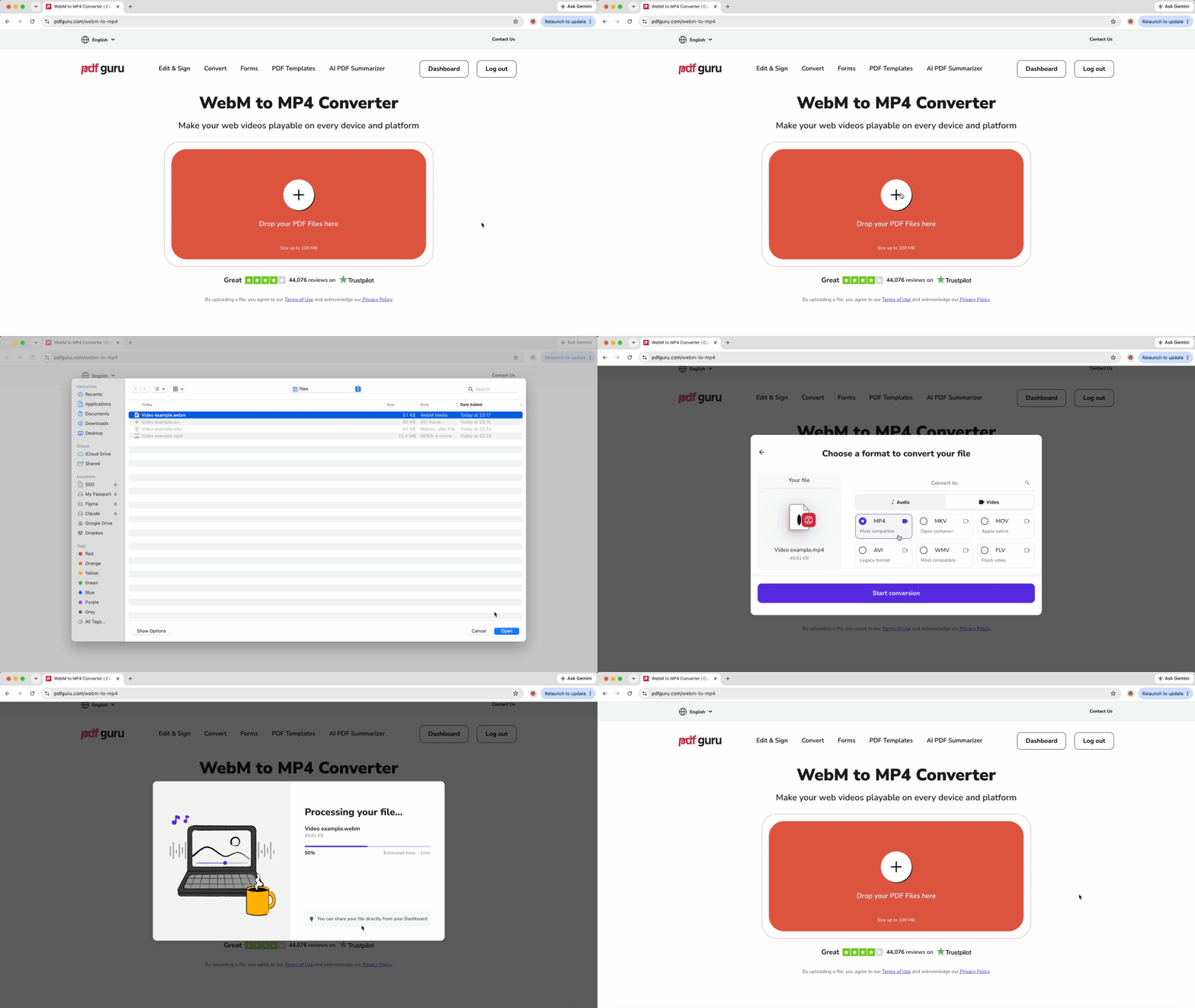
- 1
- 2Upload your WebM file by dragging it onto the page or clicking to select from your device.
- 3The tool automatically re-encodes the VP8 or VP9 video stream to H.264 and the Opus or Vorbis audio stream to AAC within an MP4 container — this happens behind the scenes without any configuration.
- 4Download the MP4 file when processing finishes.
Because WebM and MP4 use fundamentally different codecs, the conversion always requires full re-encoding, not a fast container swap. Expect processing time proportional to your video length. A 10-minute video typically converts in one to three minutes. The browser-based approach works especially well for short files, quick sharing tasks, or devices where you can't install desktop software.

How to convert WebM to MP4 on Mac
QuickTime Player on macOS does not support WebM — it cannot play WebM files, and it cannot convert them. This is different from H.264 .MOV files, where QuickTime works perfectly. Every Mac method requires third-party software.
HandBrake
HandBrake is free, open-source, and the most reliable choice when you need to convert WebM to MP4 on Mac. Its preset-driven approach handles the codec swap cleanly.

- 1Download and install HandBrake.
- 2Drag your WebM file into the HandBrake window.
- 3Set the Format dropdown to MP4.
- 4Pick a preset — Fast 1080p30 works for most cases and preserves quality while keeping file size reasonable.
- 5Click Start Encode.
HandBrake saves output with a .m4v file extension by default. Manually change the extension to .mp4 in the filename field before encoding, or rename the file afterward. Some devices and software reject .m4v even though it's technically compatible.
VLC Media Player
VLC is free and already installed on many Macs, making it convenient for quick conversions.
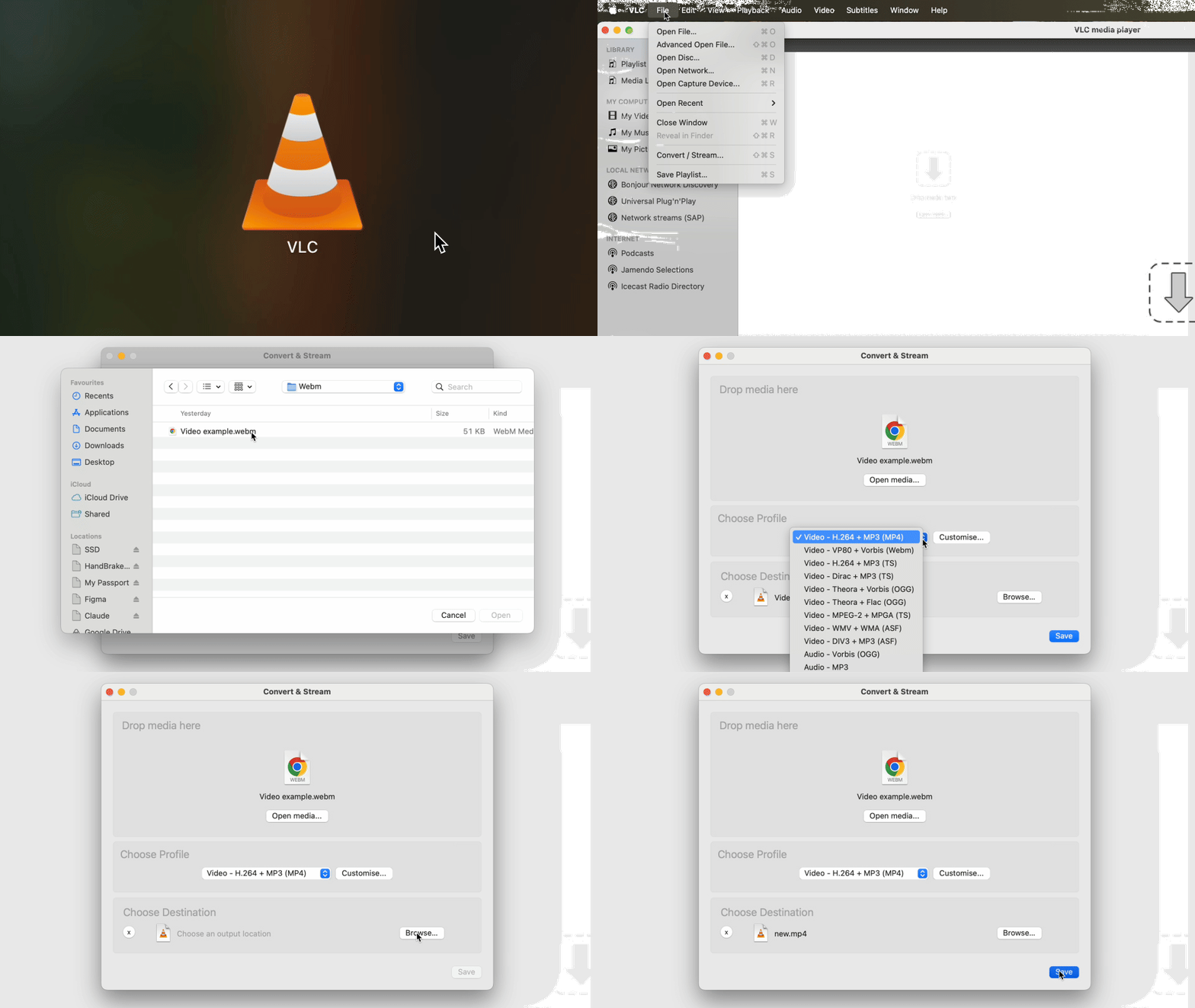
- 1Open VLC and go to File > Convert/Stream.
- 2Click Open Media and select your WebM file.
- 3Choose Profile: Video - H.264 + MP3 (MP4).
- 4Click Save as File, pick a destination, and start the conversion.
VLC has a known issue where it sometimes drops the audio track when converting WebM to MP4. If your converted MP4 plays without sound, click the wrench icon next to the Profile dropdown, go to the Audio codec tab, ensure the Audio checkbox is enabled, and set the sample rate to 48000 Hz. Do not assume the conversion failed entirely — it's a partial failure specific to audio. If the issue persists, switch to HandBrake or FFmpeg instead.
FFmpeg (advanced)
FFmpeg is command-line software ideal for batch conversions or scripting workflows.
- 1Install Homebrew if you don't have it, then run
brew install ffmpegin Terminal. - 2
- 3Run the command:
ffmpeg -i input.webm -c:v libx264 -c:a aac -b:a 192k output.mp4
Replace input.webm and output.mp4 with your actual filenames. FFmpeg handles Opus-to-AAC transcoding correctly and is scriptable, making it the best choice for converting dozens of files at once.
How to convert WebM to MP4 on Windows
Microsoft Clipchamp
Clipchamp is built into Windows 11 and handles WebM input well. It's the easiest path if you're looking for how to convert WebM to MP4 without installing third-party software.
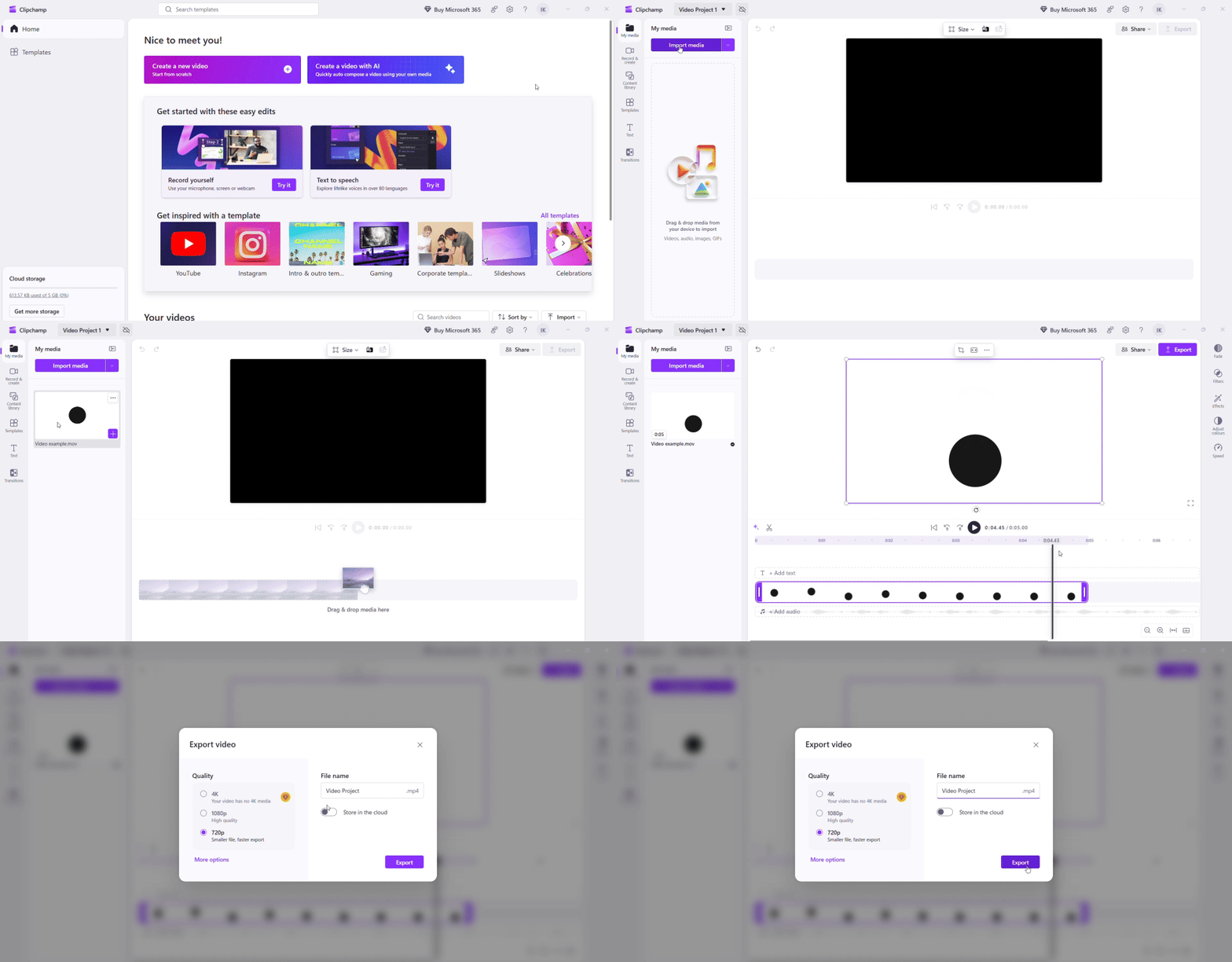
- 1Launch Clipchamp from the Start Menu (search "Clipchamp").
- 2Click Create new video.
- 3Import your WebM file via the Import media button.
- 4Drag the WebM clip onto the timeline.
- 5Click Export — all exports default to MP4, so you don't need to configure format settings.
VLC Media Player
VLC works on Windows the same way it does on Mac, with the same audio-dropping caveat.
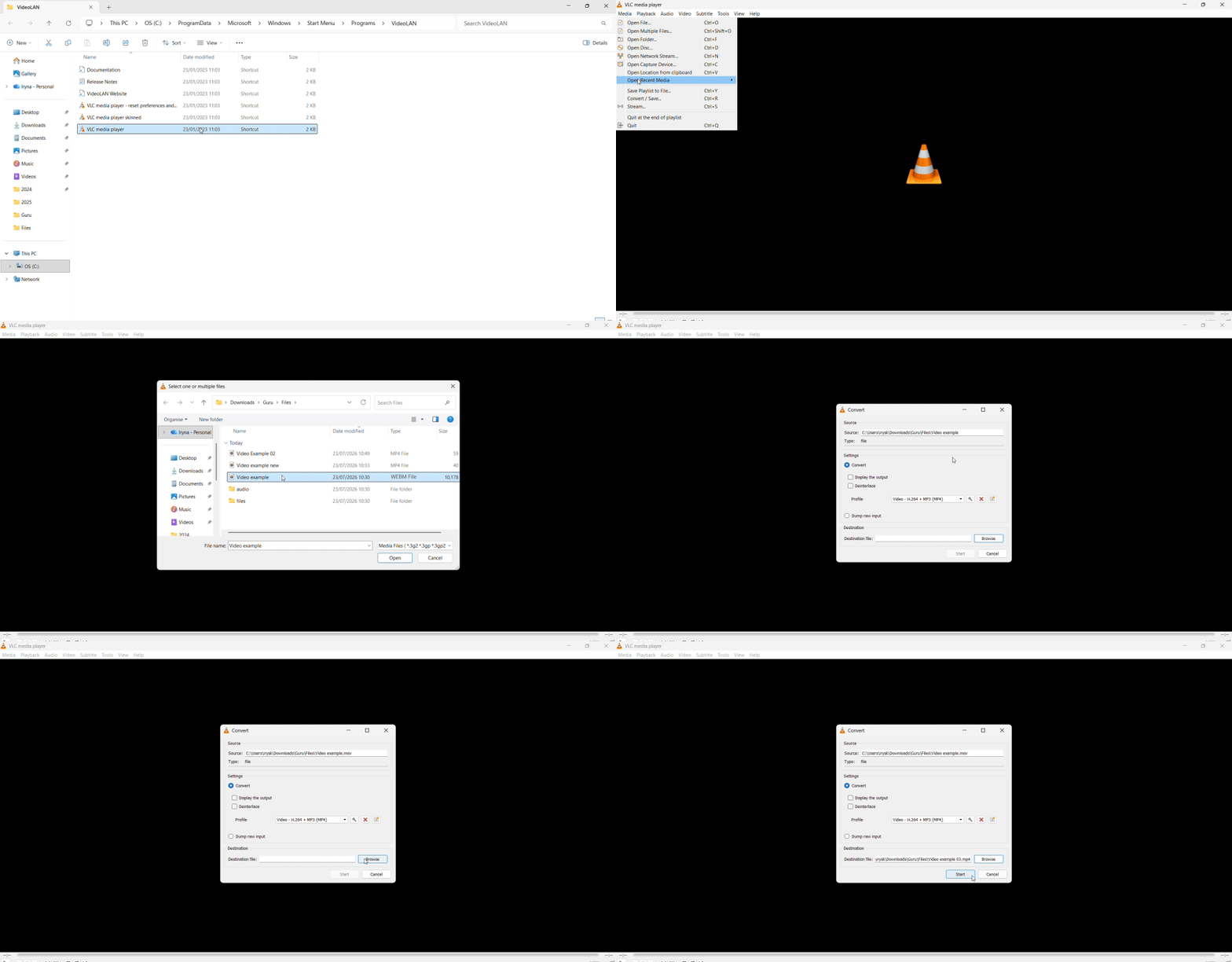
- 1Open VLC and go to Media > Convert/Save (or press Ctrl+R).
- 2Click Add and select your WebM file.
- 3Click Convert/Save at the bottom.
- 4Set Profile to Video - H.264 + MP3 (MP4).
- 5Click Browse to pick a destination, and type the full filename including the .mp4 extension — VLC may not append it automatically.
- 6Click Start.
If your converted MP4 has no sound, the video itself converted fine — it's a partial failure specific to audio. Fix it in VLC: click the wrench icon next to the Profile dropdown, open the Audio codec tab, check that the Audio checkbox is enabled, and set the sample rate to 48000 Hz. If the problem persists, switch to HandBrake or FFmpeg, both of which handle Opus re-encoding reliably.
HandBrake
HandBrake for Windows works identically to the Mac version.
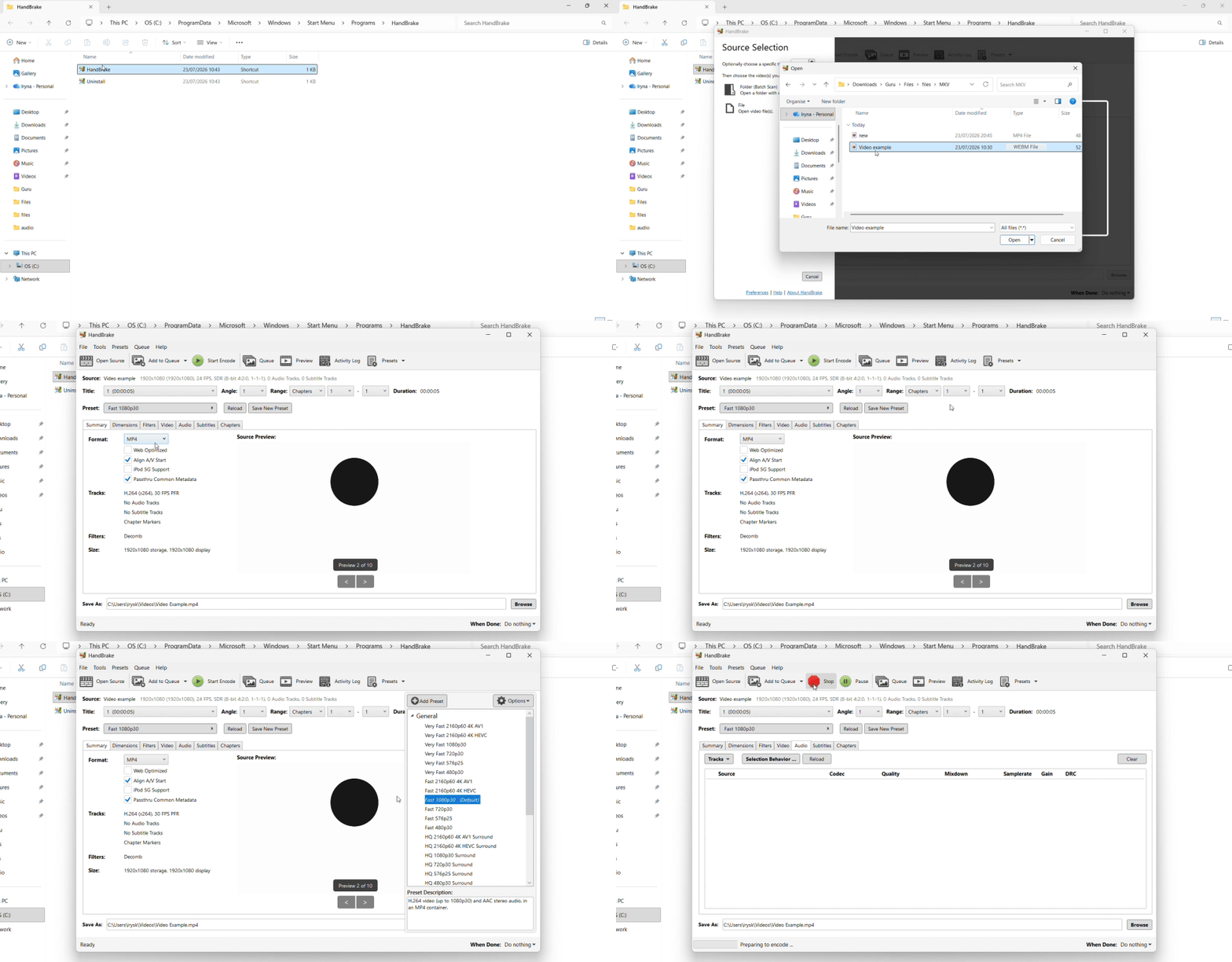
- 1Download and install HandBrake.
- 2Drag your WebM file into HandBrake.
- 3Set Format to MP4 and pick a preset.
- 4Manually change the file extension to .mp4 if HandBrake defaults to .m4v.
- 5Click Start Encode.
FFmpeg (command line)
- 1Download FFmpeg and extract it to a folder.
- 2Open Command Prompt and navigate to the folder containing your WebM file.
- 3Run:
ffmpeg -i input.webm -c:v libx264 -c:a aac -b:a 192k output.mp4
Windows Media Player cannot natively convert WebM files to MP4. On Windows 11, it may not even play WebM without codec packs installed. Stick with Clipchamp, HandBrake, VLC, or FFmpeg.
How to convert WebM to MP4 online
Online converters are cross-device solutions. They work on Chromebooks, mobile devices, work computers without admin rights, and any system where you can't install software. If you're searching for how to convert WebM to MP4 and you don't want to download a desktop application, browser-based tools are the answer.
Check these factors before uploading to any online service:
File size limit. Most free online tools cap uploads at 100 MB to 1 GB. Typical short WebM downloads fall comfortably within this range — WebM files are usually smaller than equivalent MP4 files because VP9 compression is more efficient than H.264. But full YouTube videos or long screen recordings can exceed the limit.
Privacy policy and file deletion timeline. Understand how soon the service removes your files from its servers. Some platforms keep uploads for 24 hours; others delete immediately after download.
Watermark or signup walls. Many free online converters add watermarks to output files or require account creation after your first conversion.
HTTPS encryption during upload. Always verify the URL starts with https:// before uploading. Unencrypted transfers expose your video content to interception.
Do not upload videos containing copyrighted content — YouTube downloads, streaming captures, or client work under NDA — to random online services. Even when the conversion itself is technically allowed, the file sits on someone else's server, and you have no control over retention or access. PDF Guru provides encrypted transfers.
For users who need a comprehensive video converter covering multiple formats, PDF Guru's general video converter hub links to WebM, AVI, MKV, and other conversion tools in one place.
Tips for better WebM to MP4 conversion
Re-download instead of converting when the source is YouTube. If your WebM file came from a YouTube download via yt-dlp or a browser extension, the easiest path is not to convert at all. Re-run yt-dlp with the --remux-video mp4 flag, or download as MP4 from the start by specifying format code -f 'bestvideo[ext=mp4]+bestaudio[ext=m4a]'. This gives you an MP4 file immediately, skips re-encoding, and preserves maximum quality.
Understand why container swap doesn't work. WebM uses VP8 or VP9 video with Opus or Vorbis audio. MP4 uses H.264 video with AAC audio. These codecs are fundamentally incompatible — you cannot simply rewrap a VP9 video stream inside an MP4 container the way you can with H.264. Conversion always requires full re-encoding, which takes time proportional to video length. A 10-minute video converts in one to three minutes on a modern computer. This is not a tool limitation; it's the nature of codec transcoding.
Fix silent MP4 files immediately. If your converted MP4 plays without sound, the audio track was dropped during conversion. This is a known VLC issue with WebM's Opus audio codec — VLC's AAC transcoder fails silently when processing Opus input. Switch to HandBrake or FFmpeg. Both handle Opus re-encoding correctly and will produce an MP4 with working audio.
Keep the original WebM file until you verify the MP4. Play the converted MP4 on your target device — iPhone, video editor timeline, smart TV — before deleting the WebM source. Occasionally, transcoding introduces errors (sync drift, color shifts, corrupted frames) that aren't visible until playback. If the MP4 has issues, you can re-convert from the original with different settings.
Use batch processing for multiple files. If you have dozens of WebM files to convert, online tools typically cap batch uploads at 5 to 10 files. Desktop software scales better. HandBrake has a built-in queue feature — add all your files, configure settings once, and let it process overnight. FFmpeg users can write a shell script to loop through a folder and convert every .webm file automatically.
If you ever need the reverse operation — perhaps exporting web-optimized video from an MP4 source — PDF Guru's MP4 to WebM converter handles that workflow.