
Whether you need to fix a sideways scanned document, correct a photo from your phone, or prepare files for printing, knowing how to rotate a PDF is essential. Many users struggle with this task because they confuse temporary view rotation with permanent page rotation. This guide walks you through both concepts and shows you exactly how to rotate pages in PDF files using online tools, native Mac and Windows applications, and mobile devices.
Permanent rotation vs. view-only rotation
Before learning how to permanently rotate PDF pages, you need to understand a critical distinction. View rotation changes how your PDF appears on screen temporarily—close the file and it reverts. Permanent rotation modifies the PDF's structure itself, saving the new orientation. Many people rotate their view (often accidentally with keyboard shortcuts) and wonder why changes disappear when they reopen the document. When you want to rotate pages in PDF files for good, you need a tool that edits the file itself, not just your display.
How to rotate PDF pages using PDF Guru
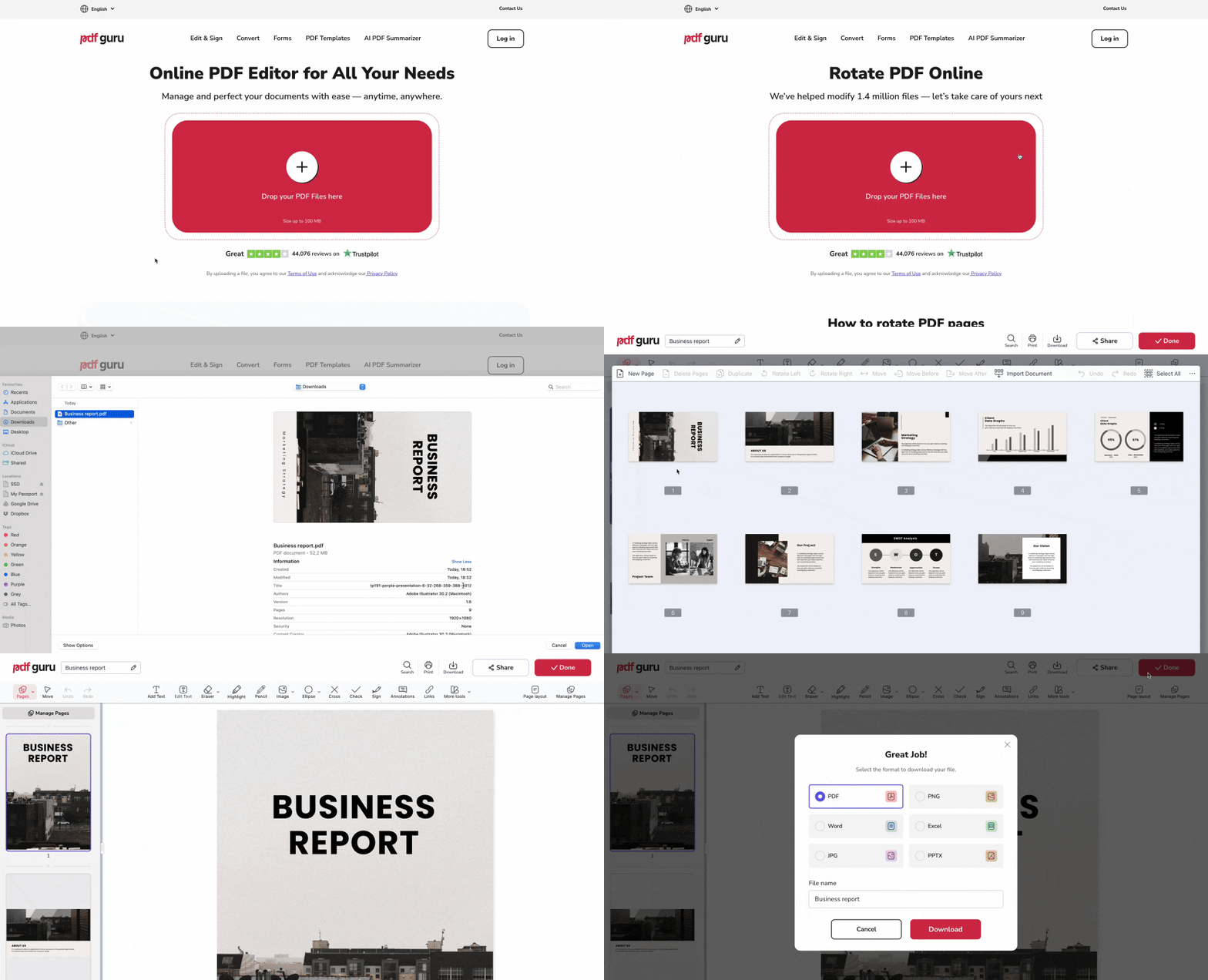
PDF Guru's online editor makes it simple when you're wondering how to rotate a PDF across any platform. Here's the step-by-step process:
- 1
- 2Upload your PDF file by clicking the upload area or dragging and dropping
- 3Select the pages you want to rotate—individual pages, specific page ranges, or the entire document
- 4Choose your rotation angle: 90° clockwise, 180°, or 270° clockwise (90° counterclockwise)
- 5
- 6Download your rotated PDF file to your device
This method works whether you need to rotate a single page that's upside down or rotate PDFs with dozens of pages that all need adjustment. The tool handles batch rotation efficiently, and you can preview each page before saving to verify the orientation is correct.
And if rotation is just one of several changes you need to make, PDF Guru has you covered — check out the guide on how to add a page to a PDF for when you need to go further than just fixing the orientation.

How to rotate a PDF on Mac
Mac users have a built-in solution for learning how to rotate a PDF on Mac through the Preview application.
Using Preview
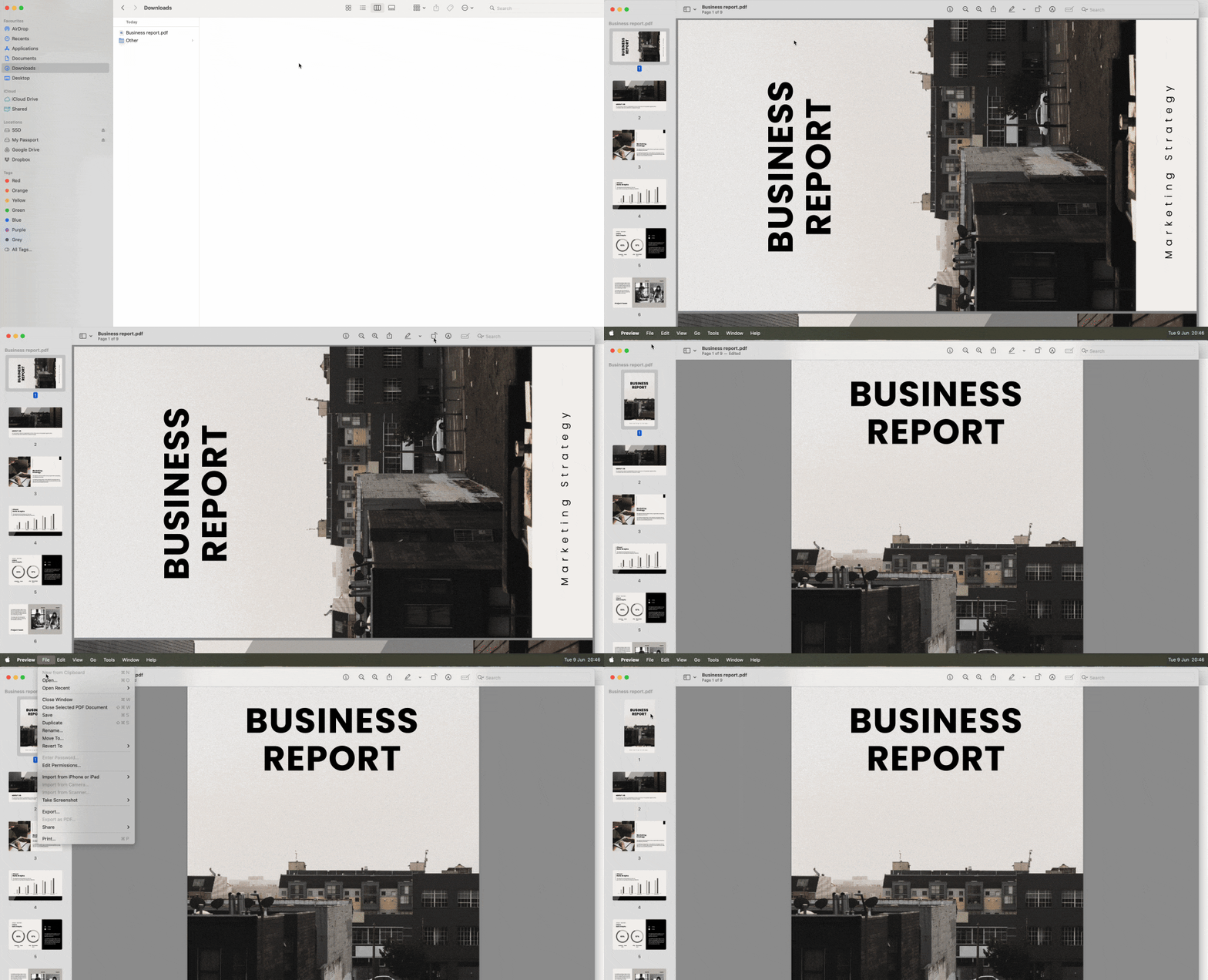
- 1Open your PDF file in Preview (double-click the file or right-click and select "Open With" → "Preview")
- 2Click the "Rotate Left" or "Rotate Right" button in the toolbar at the top of the window
- 3Repeat the rotation for additional pages by selecting them in the sidebar page thumbnails
- 4Save your changes by pressing Command+S or selecting File → Save
Preview makes permanent changes to your PDF file, so the rotation persists when you reopen the document. If you need to rotate multiple pages at once, select them in the sidebar (hold Command while clicking page thumbnails), then apply the rotation to all selected pages simultaneously.
How to rotate a PDF on Windows
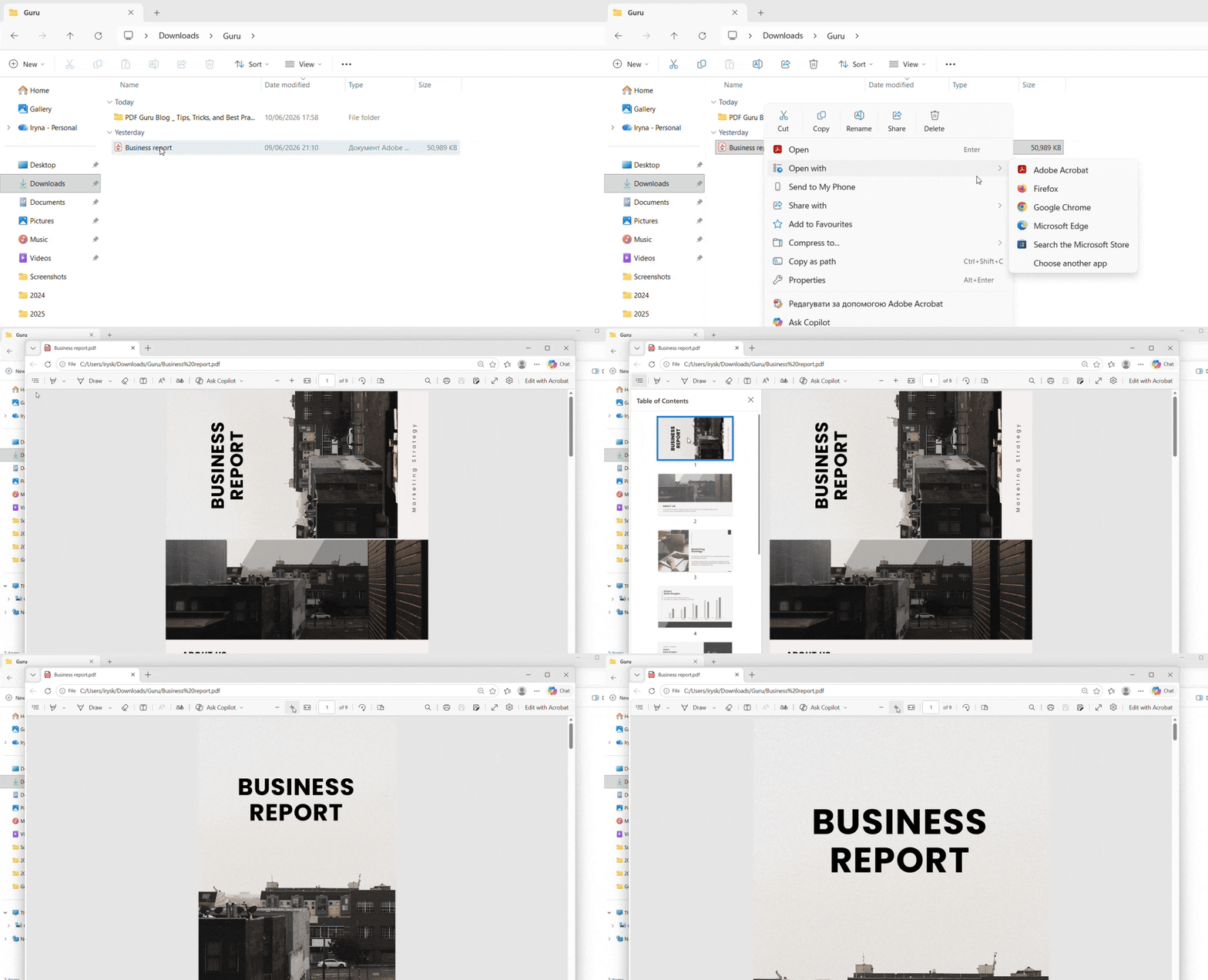
You can't permanently rotate a PDF using only Microsoft Edge or Google Chrome. Both browsers have rotate buttons, but they are viewing-only — they flip the page on screen but don't save the rotation when you print to PDF or save the file.
Using Microsoft Edge (temporary rotation only)
- 1
Right-click your PDF file and select "Open with" → "Microsoft Edge"
- 2
- 3
The page will rotate on screen — useful if you just need to read it comfortably
Note: This only changes how the file looks while it's open. Close and reopen it, and the page will be back to its original orientation.
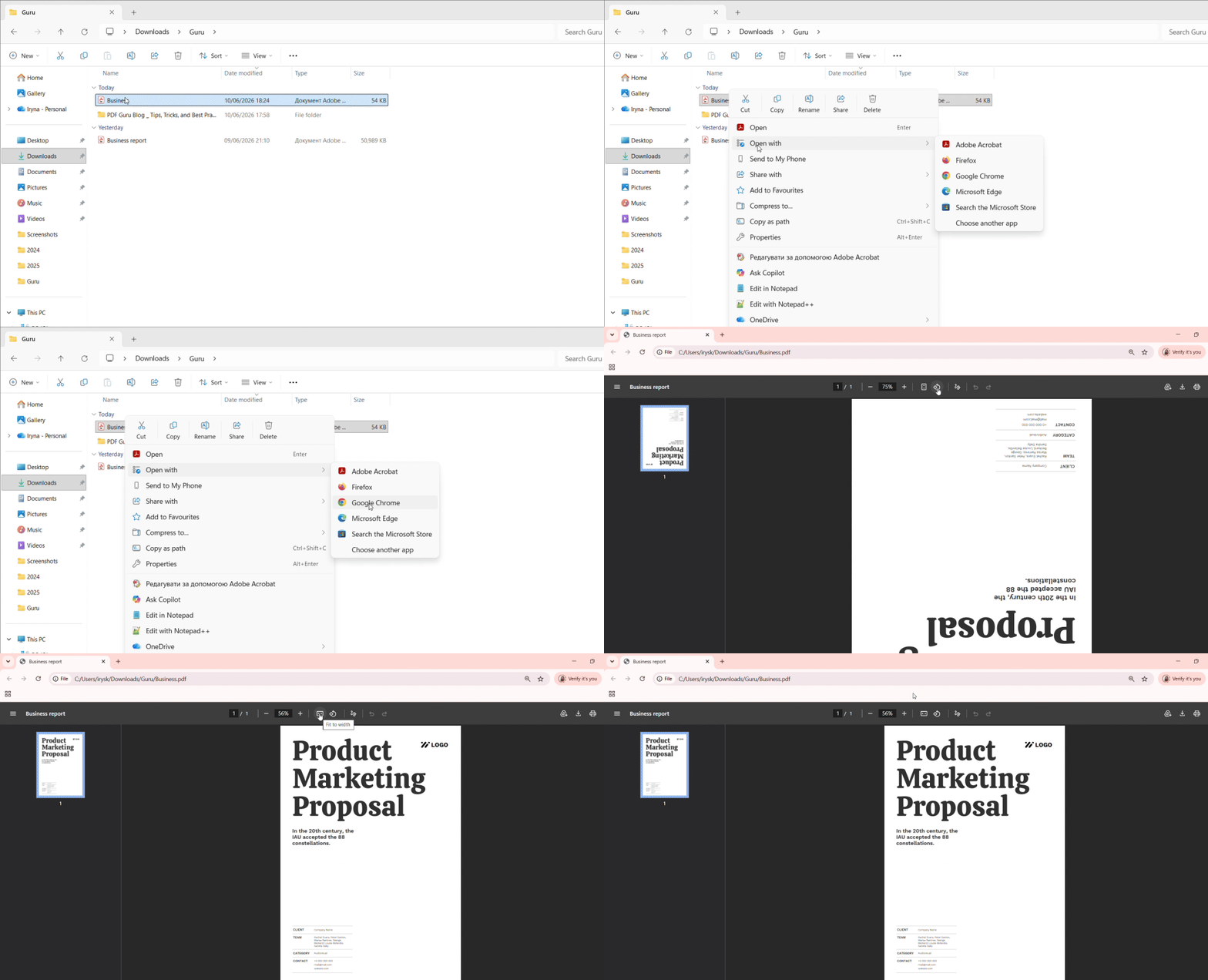
Using Google Chrome (temporary rotation only)
- 1
Drag your PDF into a Chrome window to open it
- 2
- 3
The page will rotate on screen for easier reading
Note: Same as Edge — the rotation doesn't save to the file. Once you close it, it reverts to its original orientation.
Alternatively, you can permanently rotate PDFs online using PDF Guru. Upload your file, select the pages you want to rotate, and save.
How to rotate a PDF on mobile
Mobile devices require different approaches since most built-in PDF viewers lack editing capabilities.
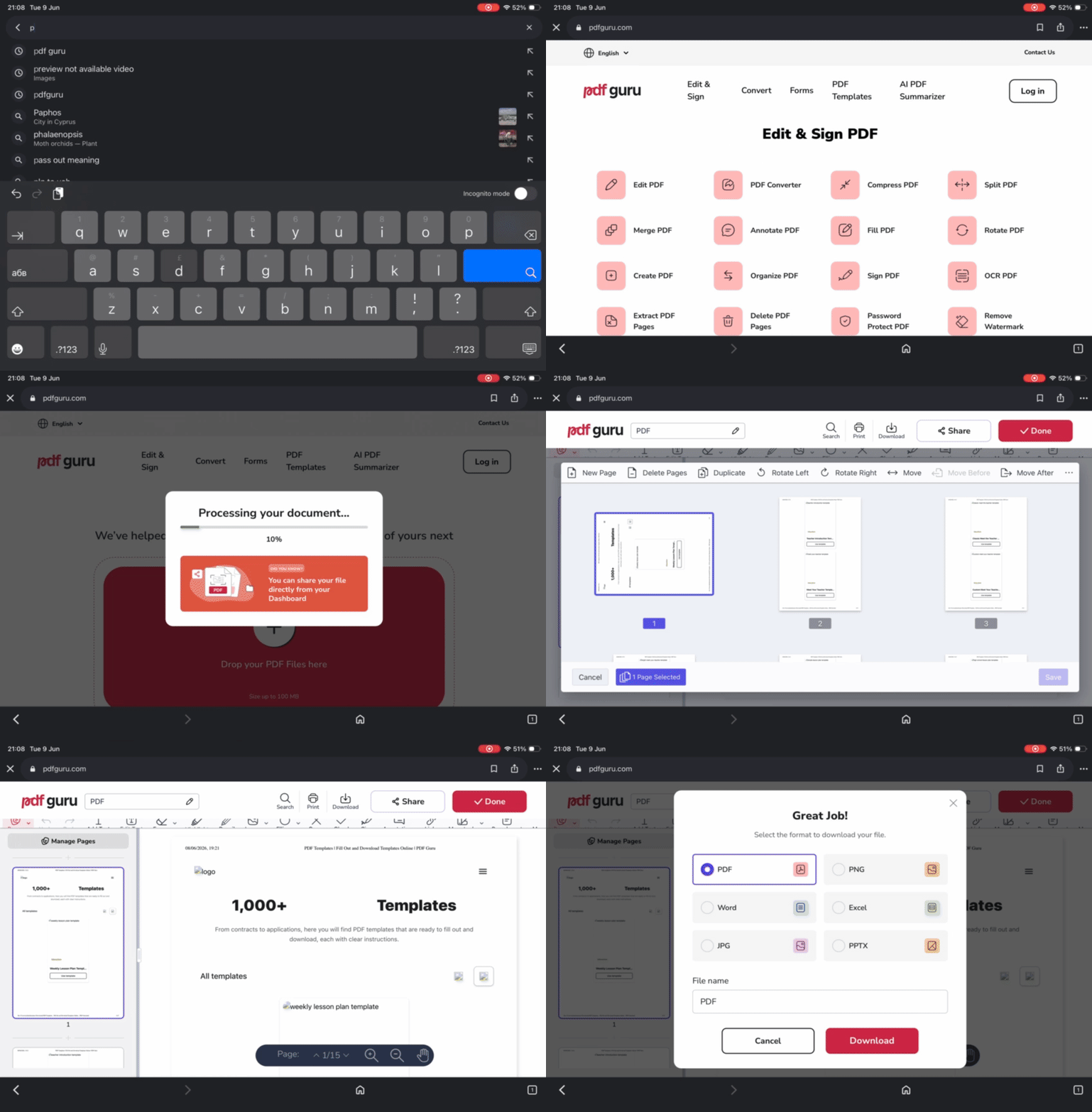
On iOS (iPhone/iPad)
- 1
- 2Upload your PDF file from your device
- 3Select pages and apply rotation
- 4Download the rotated file back to your iPhone or iPad
Alternatively, you can use the iOS print-to-PDF method: open the PDF in any app, tap Share → Print, pinch-to-zoom on the preview to save it as a new PDF, then use the print dialog's rotation option if available.
On Android
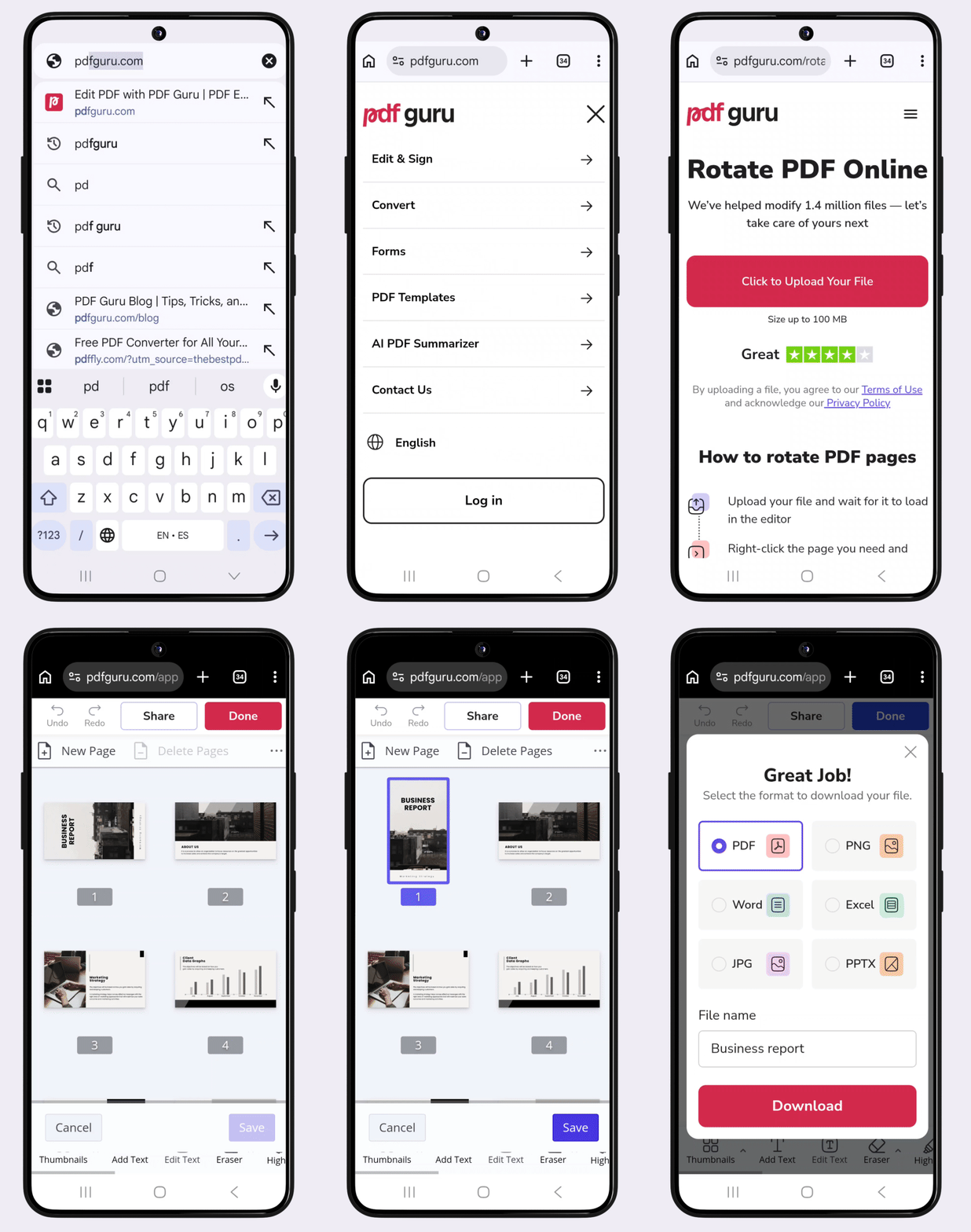
- 1
- 2Use the online rotation tool
- 3Upload and rotate your PDF
- 4Download the modified file to your Android device
For both platforms, the browser-based approach is the most reliable way to rotate pages in PDF files on mobile without installing dedicated apps.
Common reasons to rotate a PDF
Understanding when you need to rotate PDF pages helps you recognize the situations where this skill matters:
Scanned documents with incorrect orientation — Automatic document feeders on scanners sometimes process pages sideways or upside down, especially when scanning mixed-size documents or bound materials. You'll need to rotate these pages to make them readable.
Photos from mobile phone cameras — When you convert phone photos to PDF format, the orientation metadata sometimes gets ignored, leaving your images sideways. Learning how to flip a PDF corrects this issue for sharing or printing.
Preparing documents for professional printing — Print shops require consistent page orientation throughout a document. If you're merging multiple PDFs or adding cover pages, you may need to rotate certain pages to ensure everything aligns correctly.
Merging PDFs with different orientations — Combining a landscape presentation with portrait documents creates a file where readers must tilt their heads or device. Rotating pages to standardize orientation makes your merged document much more professional.
Tips for rotating PDF pages
These practical tips will help you rotate PDF files more efficiently and avoid common mistakes:
Create a backup copy before rotating — Always duplicate your original PDF file before making changes. If the rotation doesn't turn out as expected or you accidentally rotate the wrong pages, you'll have the unmodified version to fall back on.
Preview each page after rotation — Before closing your PDF editing tool, scroll through the entire document to verify every page is oriented correctly. This quick check prevents the frustration of discovering errors after you've already shared the file.
Use batch rotation for multiple pages — When dozens of pages need the same adjustment, select them all and rotate them together rather than working page by page. This approach saves significant time when you want to rotate entire PDF documents or large sections.
Remember the permanent vs. view-only distinction — When you rotate a PDF using an editing tool (whether online, in Preview, or through print-to-PDF), those changes are permanent. View rotation through keyboard shortcuts or display settings is temporary. Choose the right method based on whether you need lasting changes or just a different viewing angle.
Consider the workflow for adding pages to a PDF if you're building a document from multiple sources—rotating pages during assembly ensures consistent orientation from the start.