
Rearranging PDF pages is a quick and easy task when you have the right tools. Typically, you open a PDF file, view the thumbnails, and then drag and drop pages into the order you want. Once you're done, you save or download your updated file. Doesn't seem like much of a hassle, right? It's really not.
So, let's explore the best ways to reorder PDF pages, both online and offline.
How to rearrange PDF pages online
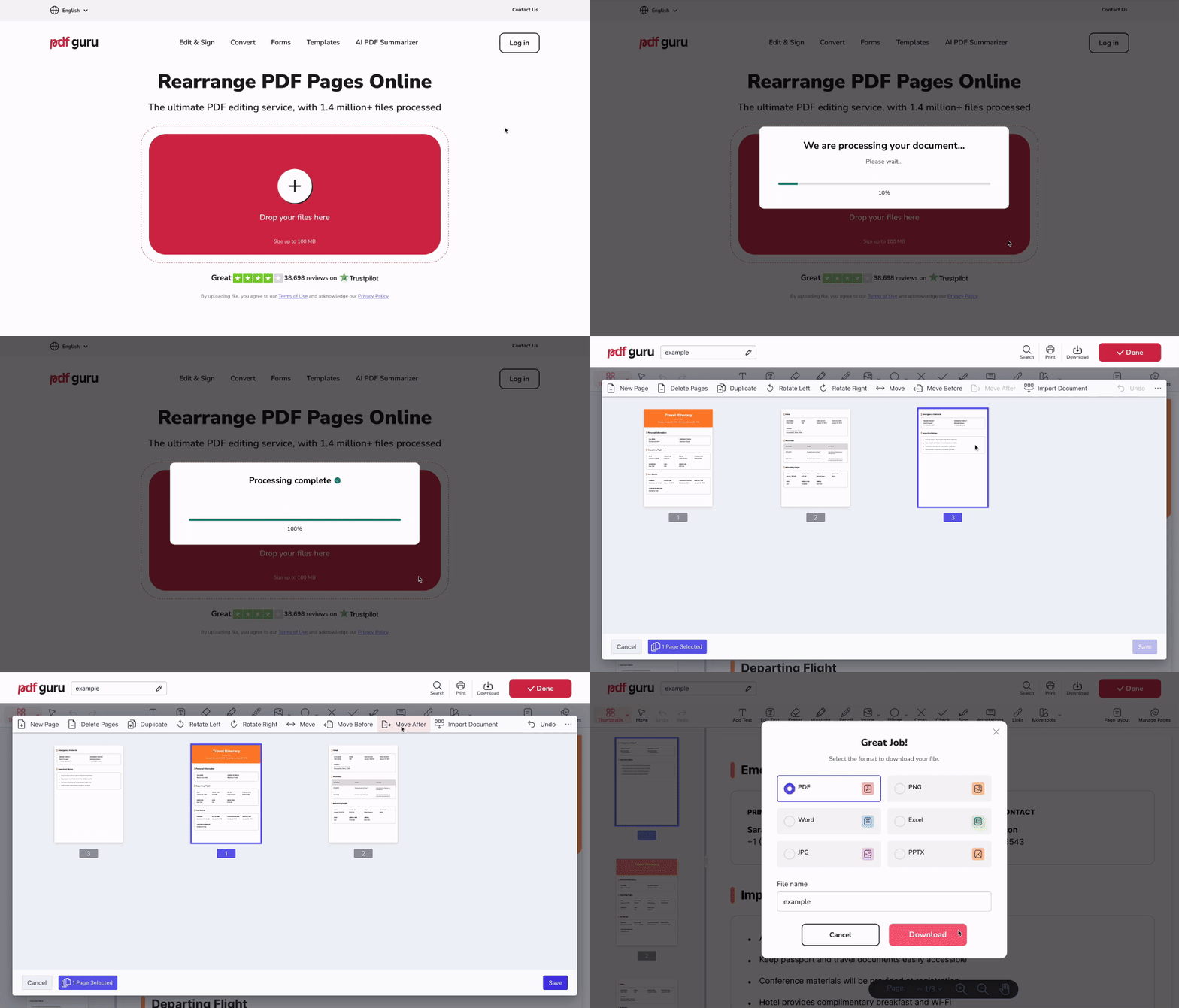
Here is how to reorder pages in PDF files using our online platform, PDF Guru.
- 1
Open the Rearrange PDF Pages tool and upload your document.
- 2
Wait for it to load in the editor.
- 3
Go to the Manage Pages tool in the top right corner.
- 4
In the pop-up window, select the page(s) you want to reorder.
- 5
Choose one of these options: Move Before / Move After to shift them one spot before or after another page, or Move to enter the specific page number where they should appear.
- 6
Review your changes and click Save.
- 7
Click Done to download your updated PDF file.
We cover more advanced editing features in our guide on How to Add, Delete, and Reorder Pages in PDF Documents. PDF Guru offers more than just a way to change PDF page order — you can edit text and formatting, insert images, add comments and signatures, and use an intuitive PDF toolkit for all your document needs.
How to organize pages in a PDF on a Mac
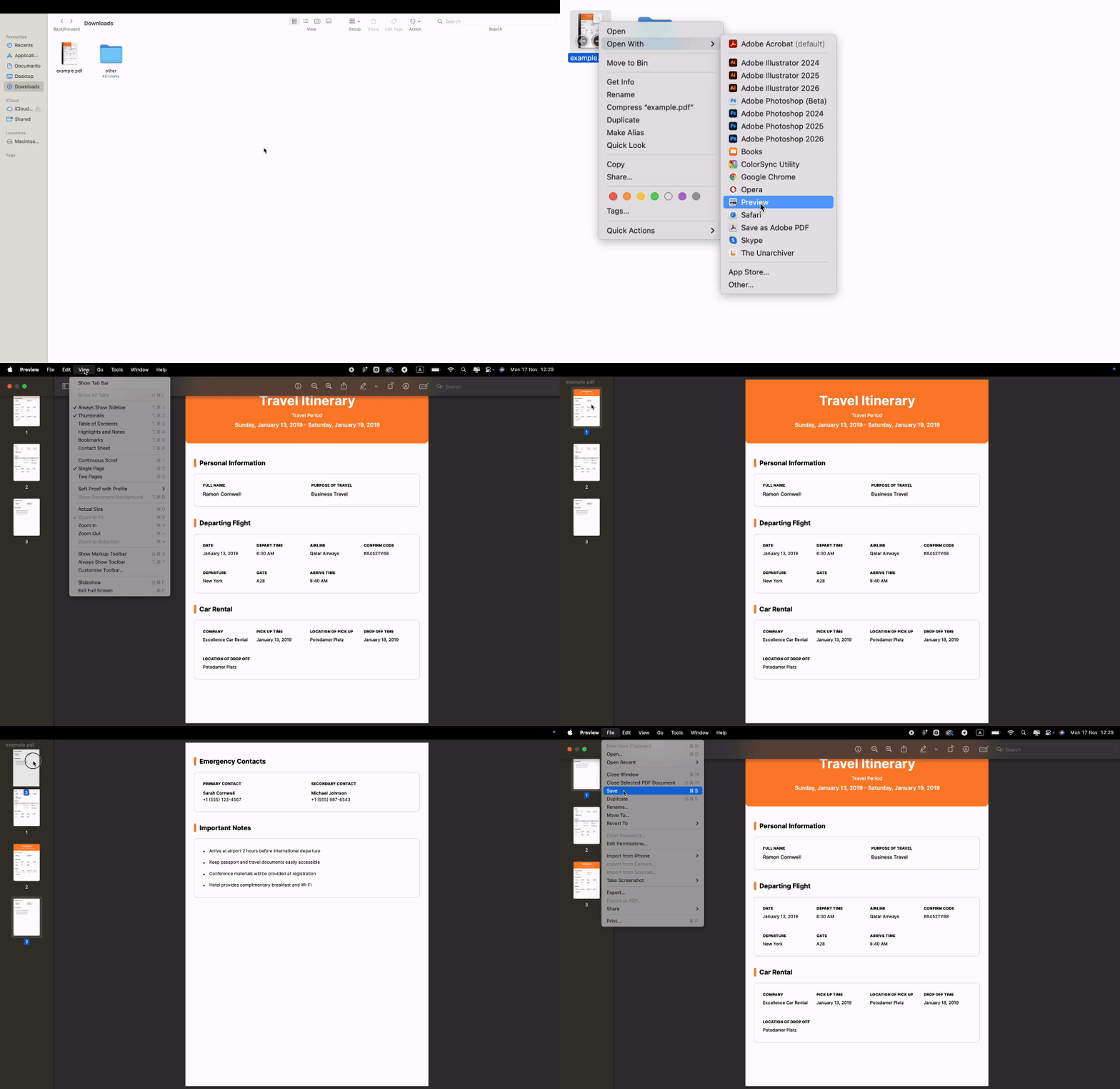
If you're on a Mac computer, you can use the built-in Preview app to organize PDF pages in different ways: move, add, delete, or rotate them.
Here's how to edit page order in PDF files on macOS:
- 1Open your file in Preview.
- 2Click View > Thumbnails.
- 3Drag pages into your desired order.
- 4Save the file.
How to reverse PDF page order on Mac
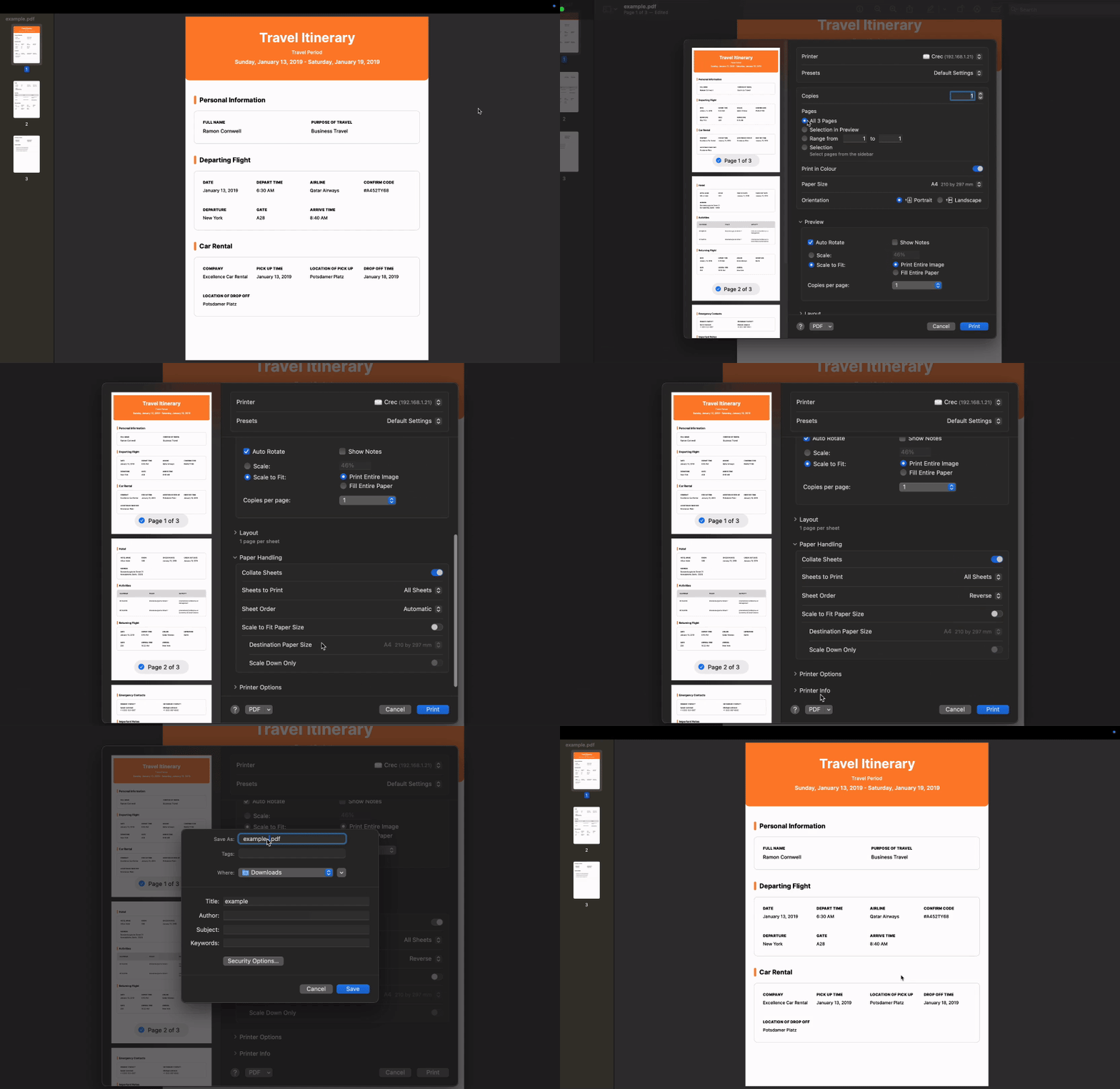
To flip your entire PDF so the last page becomes the first, follow these steps:
- 1Open your PDF in Preview.
- 2Press Command + P to open the print window.
- 3Make sure All pages is selected.
- 4Scroll down and find the drop-down menu that says Paper Handling, then open it.
- 5Under Sheet Order, select Reverse.
- 6
- 7Name your file and click Save.
This method works perfectly when you've scanned pages in the wrong order or need to share a document with pages reversed. The drag-and-drop method is still better if you only need to manually swap pages in PDF documents.

How to rearrange PDF pages on iPhone
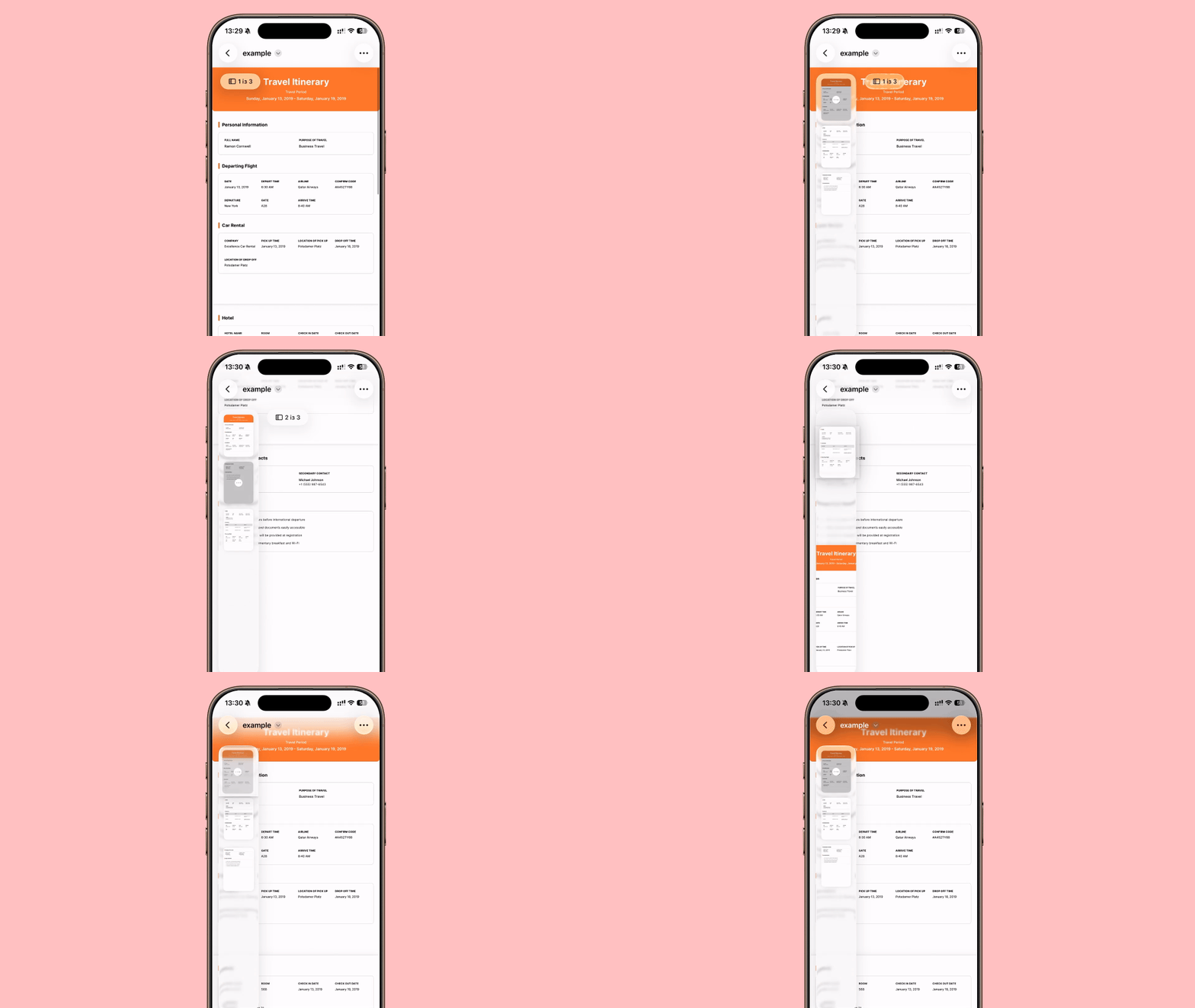
You can rearrange pages in a PDF on an iPhone using the Files app.
- 1Open Files and find the PDF you need.
- 2Tap to open the PDF.
- 3Tap the page indicator at the top (e.g., 1 of 5) to view thumbnails.
- 4Hold your finger on the page you want until it lifts.
- 5Drag it to its new position.
- 6Tap Done to save.
How to reorder PDF pages on Windows
Windows doesn't let you edit PDF page order with its default viewer, Microsoft Edge. You'll need third-party software or an online tool like PDF Guru for comfortable editing. Online PDF organizers provide more efficient solutions for page reordering.
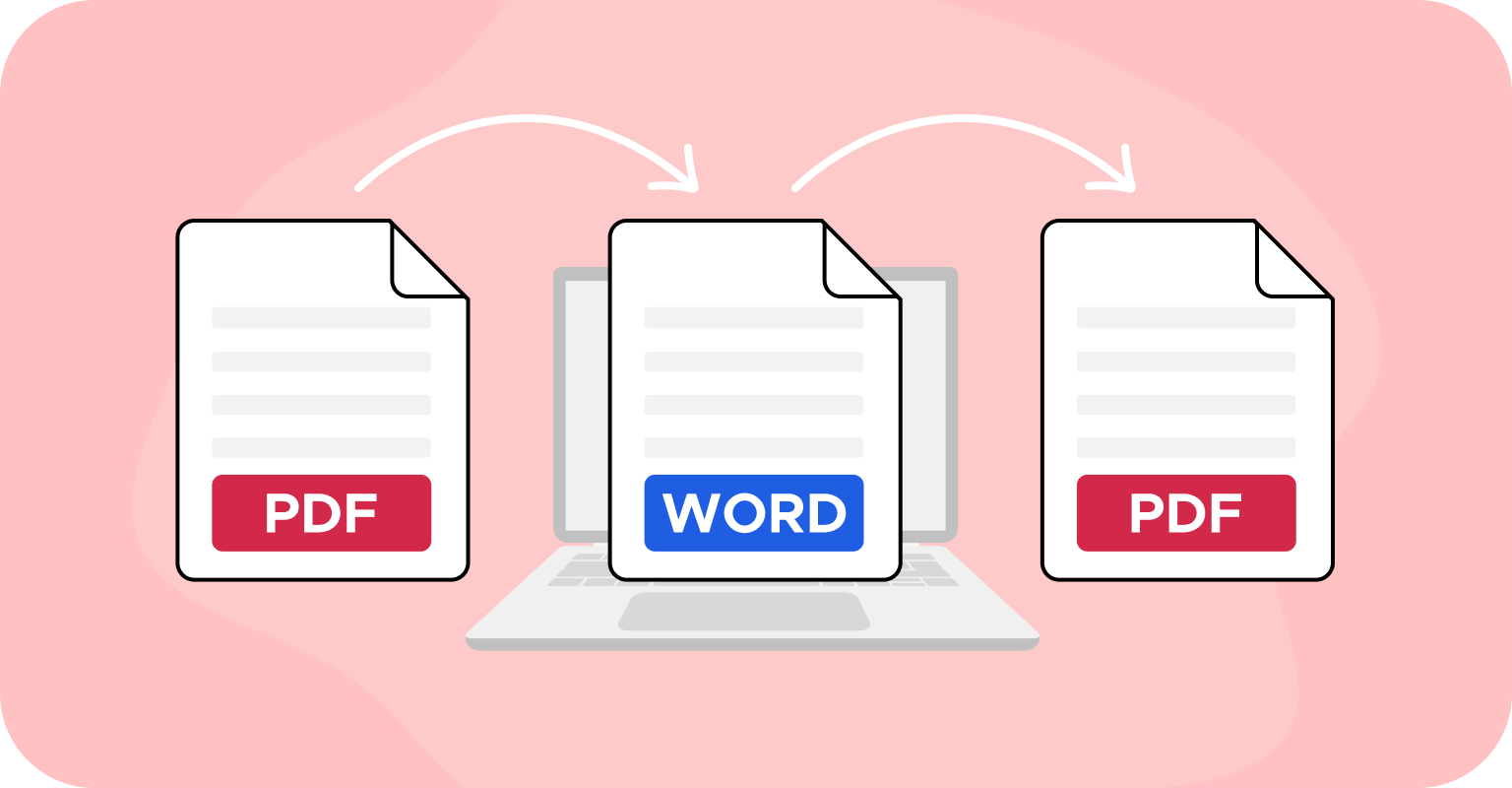
There's a workaround using Microsoft Word, but it only works if you don't need to maintain the PDF structure or formatting—and honestly, it's time-consuming and tedious.
- 1
First, go to our PDF to Word converter.
- 2
Upload your file and convert it to Word.
- 3
Open that newly converted file in Microsoft Word.
- 4
Cut and paste sections to arrange the content in the order you want.
- 5
Go to File and download your document as a PDF.
More PDF organization tools
Beyond page reordering, here are other essential tools to arrange PDF files and optimize your documents:
Rotate PDF: Fix page orientation.
Split PDF: Break large documents into smaller files.
Merge PDF: Combine PDFs into one file for easier storage and sharing.
Compress PDF: Reduce file size for faster uploads and easier sharing.
Tips for managing PDFs
Use thumbnail previews to visualize your document's entire layout and easily move pages in a PDF file.
Try OCR (text recognition technology) to make scanned documents searchable and editable.
Double-check for duplicates or missing pages, especially in long documents.
Add page numbers to simplify referencing and discussing specific sections.
Add bookmarks in long documents so readers can jump directly to specific sections.
You might also want to check out our guide on Digital Decluttering. It covers simple ways to balance your workspace by focusing on what matters and clearing out what doesn't. You'll also find a few tips on how PDF Guru can help you stay organized.
Final thoughts
We've covered several ways to reorder PDF pages. Now it's your turn to try them out and see which works best for you. Think about your workload: if you only need a quick, one-time fix, any basic tool will do. However, if you regularly work with complex documents and want something reliable for daily use, it's worth trying PDF Guru.